


 VidHex — Enhance video quality with AI
 Enhance video details and clarity with AI technology and get stunning, high-quality video in any scenario.

Video resolution defines per‑frame pixel count (width × height), while aspect ratio describes frame proportions. YouTube supports resolutions from 240p to 8K UHD: long‑form videos perform best in 16:9 1080p (4K recommended), and Shorts need vertical 9:16 1080×1920. AI enhancers such as VidHex can upscale low‑quality clips for upload. Playback quality depends on viewer internet and selected resolution, alongside creators’ source footage and upload‑side network. Missing 1080p/4K playback usually stems from limited source quality, poor connectivity, or incompatible hardware.
Contents
- Part 1. What is Video Resolution and Aspect Ratio?
- Part 2. Standard YouTube Video Dimensions & Resolutions
- Part 3. What is the Best Resolution for YouTube?
- Part 4. Pro Tip: How to Upscale Low-Resolution Videos for YouTube
- Part 5. Factors That Affect YouTube Video Quality
- Part 6. FAQs about YouTube Video Resolution
YouTube Video Resolution Settings: What is it & More
Quick Answers:
In order to full YouTube video playback experience, one should have the basic knowledge of how things work on YouTube, from knowing the standard video resolution, the difference between video resolution and aspect ratio, to the things that can affect the quality of the YouTube video when watching or uploading on the platform. Continuing to read this guide will provide you with all the information you need for a hassle-free, high-quality video resolution YouTube playback experience.

Contents:
- Part 1. What is Video Resolution and Aspect Ratio?
- Part 2. Standard YouTube Video Dimensions & Resolutions
- Part 3. What is the Best Resolution for YouTube?
- Part 4. Pro Tip: How to Upscale Low-Resolution Videos for YouTube
- Part 5. Factors That Affect YouTube Video Quality
- Part 6. FAQs about YouTube Video Resolution
Part 1. What is Video Resolution and Aspect Ratio?
As YouTube deals with long-form and short-form videos, one video resolution and aspect ratio in the YouTube context often mistakenly get mixed up. Thus, in this section, we will differentiate the two terminologies.
Video Resolution is the term used to refer to the number of pixels that are present in each frame of a video. The higher the number of pixels contained in the video, the more detailed and crisp the video is presented. It is commonly expressed as (width x height).
Aspect Ratio is the term used to refer to the shape of the YouTube video frame. It is commonly expressed as width: height, and it doesn’t concern itself with the number of pixels in the video but rather the proportions of the video.
Part 2. Standard YouTube Video Dimensions & Resolutions
| Resolution | Dimensions (pixels) | Aspect Ratio | Common Name |
|---|---|---|---|
| 8K UHD (4320p) | 7680×4320 | 16:9 | 8K |
| 4K UHD (2160p) | 3840×2160 | 16:9 | 4K |
| 1440p (2K/QHD) | 2560×1440 | 16:9 | 2K |
| 1080p (Full HD) | 1920×1080 | 16:9 | Full HD |
| 720p (HD) | 1280×720 | 16:9 | HD |
| 480p (SD) | 854×480 | 16:9 | SD |
| 360p | 640×360 | 16:9 | Low Quality |
| 240p | 426×240 | 16:9 | Very Low Quality |
Part 3. What is the Best Resolution for YouTube?
If you are wondering what the best YouTube video resolution setting is for long-form and short-form videos? Then, in this section, we list the information you might want to keep in mind when watching or uploading a video on the platform to maximize the platform's video playback quality.
| Content Type | Resolution (px) | Aspect Ratio | Max Length | Best Practice |
|---|---|---|---|---|
| Long Video | 1920×1080 (Full HD) | 16:9 | 12 hours | Shoot and upload in 4K for best quality |
| YouTube Shorts | 1080×1920 (Full HD vertical) | 9:16 | 60 sec (up to 3 min) | Always shoot vertical |
Part 4. Pro Tip: How to Upscale Low-Resolution Videos for YouTube
If you are somehow dealing with low-resolution videos before you even had the chance to upload them on YouTube, a quick fix for such a problem is to upscale the YouTube video to ensure that when it is uploaded on the platform, you will have pristine video quality playing on the screen.
Thus, to begin with, you may search for a third-party video upscaler tool like VidHex, a reliable and free-to-use video enhancer and upscaler tool that processes videos with precision and ultimate speed with AI technology to fix the blurry and missing details, producing a detailed and crisp video as a result.
Step 1. Download and install the VidHex AI Video Upscaler to your desktop device (Windows or Mac). Once done, proceed to open the software.
Step 2. Once you open the software, on the VidHex main interface, simply load the YouTube video you wish to upscale in the field space provided in the upper part of the software. You may drag your video files into the field space or click the Add File(s) button and browse your desktop device to load your video into the software.
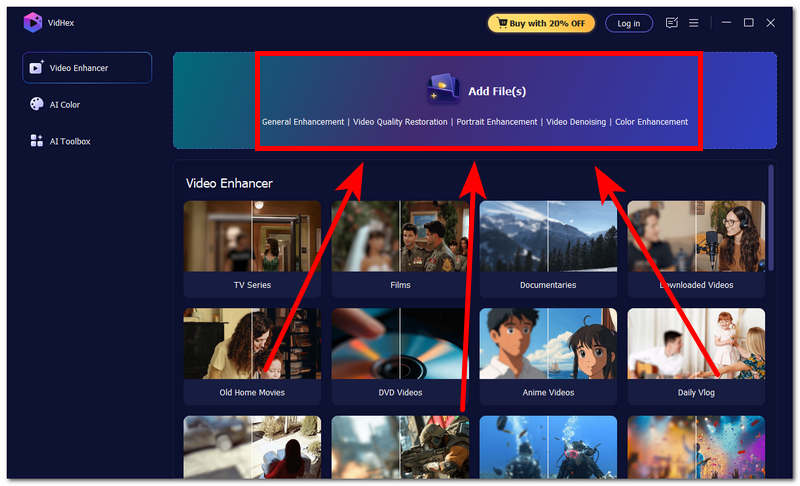
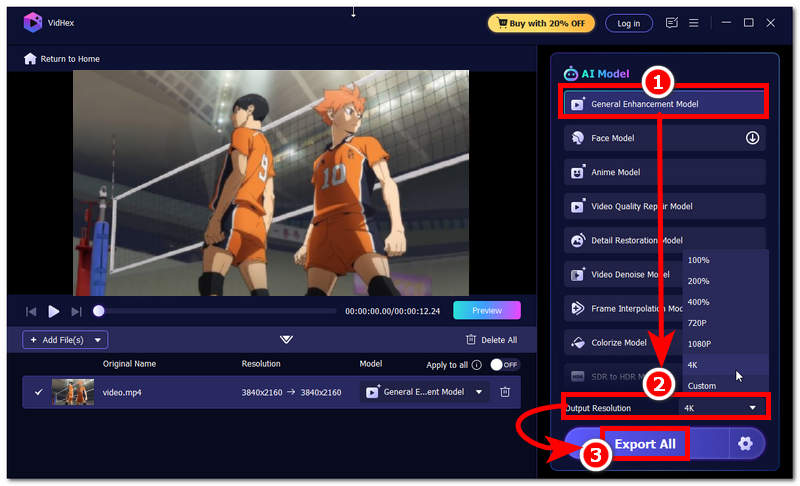
Step 3. Once you have uploaded your YouTube video in the software to begin upscaling your video, be sure that you have selected the right setting for it. First, make sure you are using the General Enhancement Model in VidHex; then change the output resolution to 4K or your preferred resolution.
Step 4. After changing your video resolution, click the Export All button to save the changes and export the video to your desktop device's designated download folder.
Part 5. Factors That Affect YouTube Video Quality
When it comes to knowing what the potential factors are that can affect or hinder users from fully experiencing and immersing themselves in the full and high-quality YouTube video playback, it can be said that there are many factors, but in this section we will list a few of the main factors that have an effect on the YouTube video quality.
| Watching | Uploading |
|---|---|
| • If viewers set the YouTube video resolution to low, it will make the video appear low quality but fast to reload. • Poor internet connectivity affects video playback and reloading, as YouTube will automatically adjust the video resolution to the quality that can keep up with the viewer’s internet connection. | • If the creator has uploaded a poor-resolution video, then the video will remain low in quality when playing on the platform. • Poor internet connectivity when uploading a video on YouTube can also affect the video. In addition to longer upload times, it can also possibly make certain parts of the video corrupted or low in quality when playing the video on the platform. |
Part 6. FAQs about YouTube Video Resolution
How do I change the video resolution on YouTube?
To change the video resolution when playing on the YouTube platform, simply navigate to the quick playback menu on the video screen. Then head over to Settings. From there, you will see the video quality option, and to set the video resolution high, simply choose the highest resolution available for the video.
Why can't I watch videos in 1080p or 4K?
A possible reason why a user can’t watch the YouTube video in 1080p or 4K is that the video doesn’t have that resolution available, the viewer's internet connection is slow at that moment, or the viewer's device doesn’t support playing higher resolutions.
Does higher resolution enhance video quality?
Yes, the higher the resolution of a video, the crisper and sharper the images or visuals it will display. However, the actual quality of the video will depend on the original quality of the video, the one that the video uses when uploading it on the YouTube platform.
Conclusion
Watching videos is our form of inquiring about information. Whether we watch videos for the sole purpose of improvement, information, or entertainment, it is better to watch a video that has a higher resolution, as watching it can make our video playback experience fully immersive. Moreover, the best video resolution for YouTube depends on the user's preferences and the video they will upload on the platform. That’s why this guide have explained the difference between a YouTube video resolution and aspect ratio, the standard video dimensions and resolutions, the best resolution to use for long-forms videos and short-form one in the YouTube, factors that has an effect in the quality of the video when playback and apart from it all is the steps in how one can effectively upscale a YouTube video resolution using VidHex to ensure a high quality video upload in the platform.
VidHex – AI Video Enhancer

- Upscale videos to 4K/8K with AI.
- Increase FPS for smoother videos.
- Colorize B&W old recordings.
- Brighten the low-lit footage.
- Remove noise with details retained.


