

 VidHex — Enhance video quality with AI
 Enhance video details and clarity with AI technology and get stunning, high-quality video in any scenario.
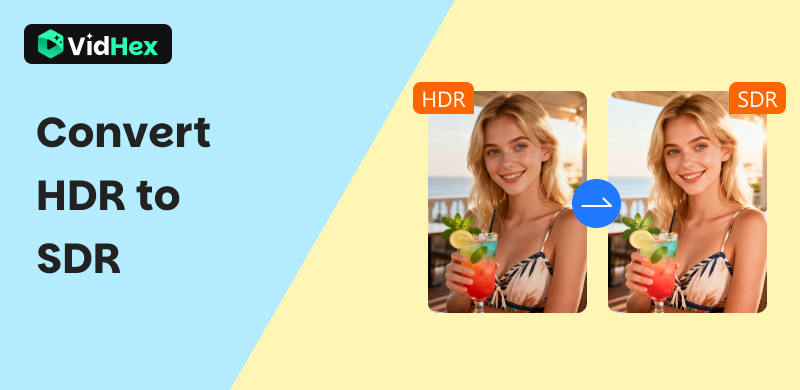
HDR content played on an SDR screen may look unnatural . To convert HDR to SDR, you can use FFmpeg's command and HandBrake conversion.
In addition, if you want to convert SDR video to 4K HDR, the VidHex Video Enhancer is the best option.
How to Convert HDR to SDR: 2 Tested Ways
Quick Answer: How to to Convert HDR to SDR
A sharper, more colorful video is always better until you play an HDR file on a screen that can't handle it: colors go flat and highlights blow out. That's why you need to convert HDR to SDR. It will make you video look right on most devices.
Below, we walk through three tested ways to get it done: a command-line method for power users who want full control and a free desktop app for everyone else. There's also a bonus section on the opposite direction, for the day you need that instead.
Contents:
Overview of 3 HDR to SDR Conversion Methods
| Method | Best for | Difficulty | Platform | Price |
|---|---|---|---|---|
| FFmpeg | Power users, batch & scripting | Hard | Windows / macOS / Linux | Free |
| HandBrake | Beginners, free desktop app | Easy | Windows / macOS / Linux | Free |
Part 1. Why We Need to Convert HDR to SDR?
HDR video looks stunning on a display that supports it: vivid colors, bright highlights, and deep shadows. But it also has hardware and software limits. Converting HDR to SDR fixes these problems and brings three practical benefits:
Device Compatibility. Many older monitors, phones, and TV.
Playback: Some media player can not read HDR metadata, resulting in faded color or playback issue.
Web sharing: Most media platform and social media often process and play SDR video more often than HDR
Part 2. Convert HDR to SDR Through FFmpeg
Best for: power users who want full control, batch processing, or scripting — completely free.
Step 1. Install the latest FFmpeg software by visiting their official website.
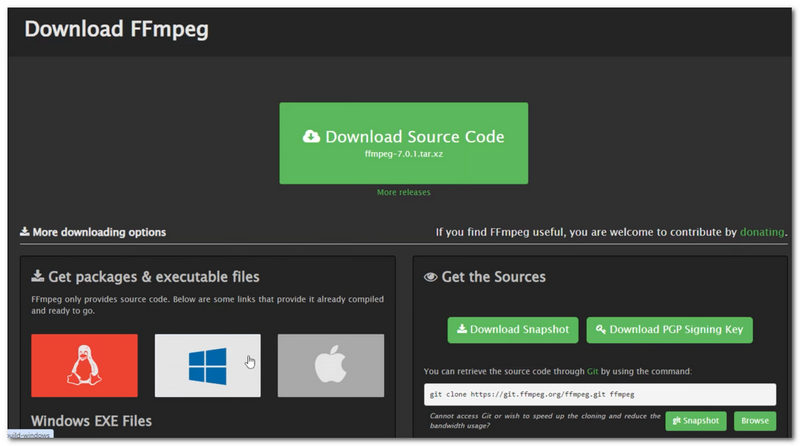
Step 2. Open Command window on Windows or Terminal on Mac.
Step 3. Copy the command below, replace input_hdr.mp4 and output_hdr_compressed.mp4 with your own file names, and press Enter. It converts HDR10 (BT.2020/PQ) to SDR (BT.709) with Reinhard tone mapping:
ffmpeg -i input_hdr.mp4 \
-c:v libx265 -crf 18 -preset slow \
-pix_fmt yuv420p10le \
-c:a copy output_hdr_compressed.mp4
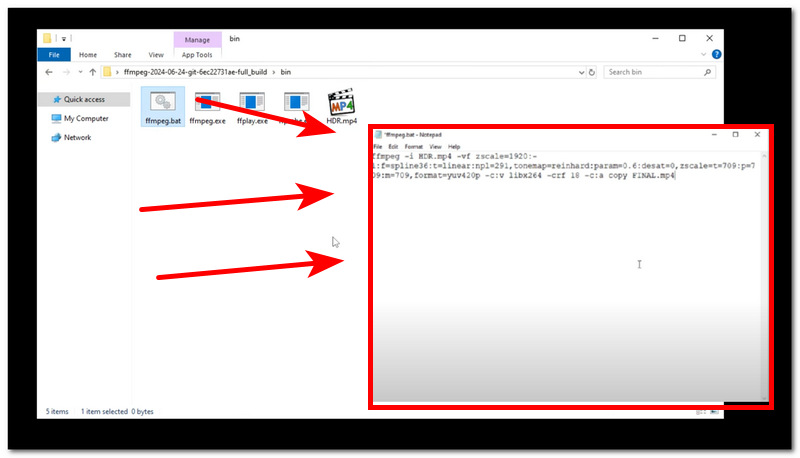
Step 4. When the process finishes, you will find output_sdr.mp4 in the same folder. Open it and check skin tones and highlights — they should look natural instead of washed out or blown out.
Part 3. Convert HDR to SDR by Handbrake
Best for: beginners who want a free desktop app with a graphical interface — no command line needed.
Step 1. Install HandBrake from handbrake.fr, then click Open Source and select your HDR video file.
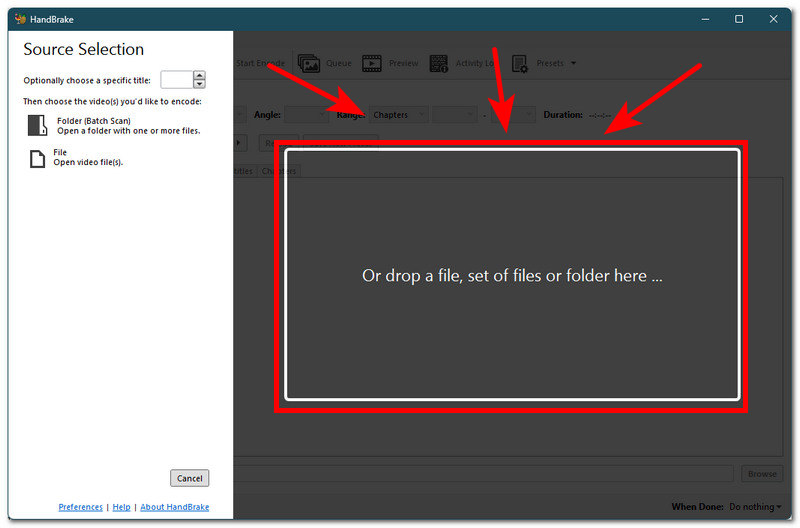
Step 2. Go to the Filters tab and expand the Colorspace section. Choose BT.709 and Apply.
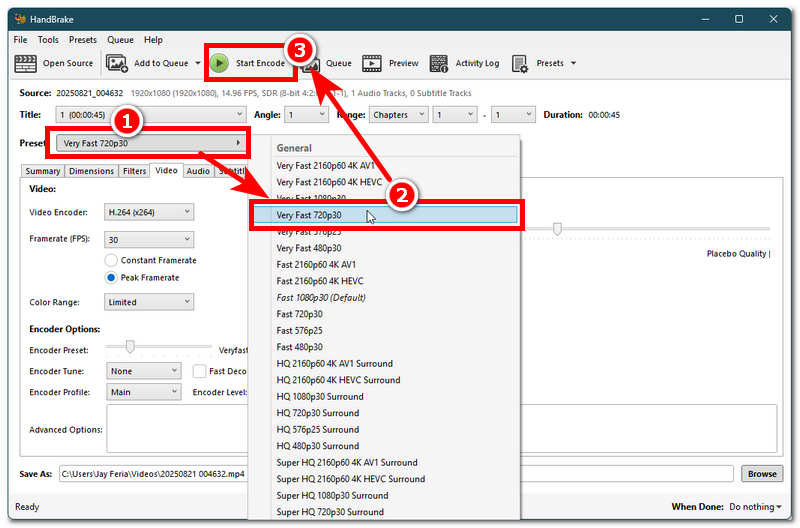
Step 3. Click Start Encode and wait. The finished SDR file will appear next to your original video.
Part 4. Bonus: How to Convert SDR to HDR via VidHex Video Enhancer
If you find the abovementioned HDR to SDR converter tool quite complicated for you, then what we have here is also an HDR video to SDR converter too, but what makes this last method more ideal for you to follow is its simplicity in terms of the process of conversion, its user interface, and overall usability. VidHex HD Video Converter is one of the converter tools available for unrestricted use, offering a lightweight file size and an easy-to-use interface while being available for Windows devices and as a tool to convert HDR to SDR on Mac. As a video resolution converter, it allows you to switch your video to a higher resolution or a lower one, depending on your needs, making it a versatile and perfect video converter tool for this matter.

Key Features
• AI AI-powered video HDR to SDR converter tool.
• Allows users to process multiple batches of video simultaneously.
• It has multiple AI model video functionalities.
• Lightweight on the user device.
• Guaranteed to convert your video to different resolutions in no time.
• Loaded with fast processing technology.
• It has a straightforward user interface.
• Free to use without hidden charges.
• Can convert any video file without losing quality.
• Does not put a watermark on your video.
Steps in Using VidHex HD Converter
Step 1. Visit the VidHex official website and download the VidHex HD Video Converter tool from there to install it on your Windows or Mac device.
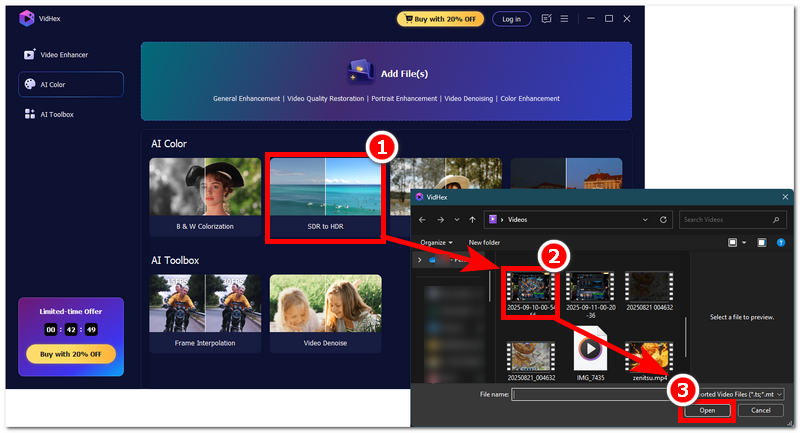
Step 2. Proceed to open the software tool, and right off the bat, in the tool’s interface, you will see all the various AI models you can use to perform on your video. To convert your HDR video to SDR, simply scroll down and look for the SDR to HDR model and upload the video file you wish to convert.
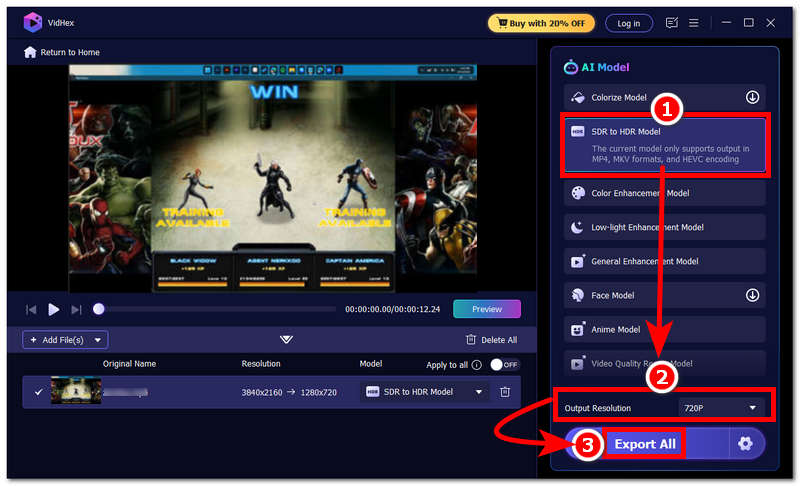
Step 3. Once you have managed to lay your video and selected the SDR to HDR model for use, proceed to change your Output Resolution to 720p to ensure that your video is converted to SDR. Finally, save the changes and begin the conversion process. Simply click on the Export All button.
If your video appears blurry during conversion, you can also use it to remove blurry from video to enhance the clarity before exporting.
Part 5. FAQs about How to Convert HDR to SDR
What does the HDR to SDR conversion mean?
HDR to SDR conversion means converting a video from an HDR color into an SDR color so it displays correctly on standard screens. It will make color look right on most common monitors.
What happens if I play HDR content on an SDR display without conversion?
You may not able to play the HDR video on an SDR monitor or TV. If you can play it, the image color may be washed out and lose the color reality.
Does HDR to SDR conversion reduce file size?
Usually, yes. HDR content is typically with higher bitrates; after conversion to SDR, the file is often smaller, if you also change the resolution, for example from 4K to 1080P, the file size will be much smaller.
Conclusion
Now that you understand the benefits and the reason for converting 4K HDR to 1080p SDR, this article has covered the topic and provided you with multiple ways to convert your video using various tools, ranging from professional-grade software to easy and lightweight converter tools.
VidHex – AI Video Enhancer
- Upscale videos to 4K/8K with AI.
- Increase FPS for smoother videos.
- Colorize B&W old recordings.
- Brighten the low-lit footage.
- Remove noise with details retained.