


 VidHex — Enhance video quality with AI
 Upscale video to HD/4K with AI technology with no quality loss and enhance detail and sharpness.
Best Video Upscaler Chrome Extensions: 5 Extensions Compared


Are you trying to improve your streaming experience and the quality of your internet videos?YouTube, Facebook, TikTok, Vimeo, Vevo, Dailymotion, Twitch, and other streaming services offer a wide variety of videos. The majority of them offer clear, high-definition videos, including 4K. What happens if you are forced to watch a video of poor quality? This article gives you five video quality enhancer Chrome extension recommendations. You can easily enhance the quality of your videos by choosing the extension of your choice.
Contents:
- Part 1. What is Video Enhancer for Google Chrome
- Part 2. 5 Best Video Enhancers for Google Chrome
- Part 3. Bonus: Best Video Quality Enhancer for Offline Watch
- Part 4. How We Test Video Upscaler Chrome Extensions
- Part 5. How to Choose the Right Video Upscaler Extension
- Part 6. FAQs about Video Upscaler Chrome Extension
Part 1. What is Video Enhancer for Google Chrome
A video upscaler Chrome extension is a browser add-on that improves how online videos look and play. They provide features including enhanced audio quality, visual modifications like brightness, contrast, and color filters, and playback settings that may be customized. Ad-blocking, distraction-free modes, and improved navigation for websites like Vimeo and YouTube are a few examples. Thus, these technologies enable viewers to enhance and customize their video-watching experience.
Part 2. 5 Best Video Enhancers for Google Chrome
Make sure you have a fast and reliable network connection before beginning any online video viewing. Additionally, you might have to manually change the streaming quality to a high-resolution setting, such as 1080p HD or 2160p 4K. For example, you can click Settings, pick Quality, and then choose your desired streaming quality when watching a YouTube video. This will quickly make the currently pixelated video clear and sharp.
To improve your viewing experience, if you are still stuck with a low-resolution movie, you can try utilizing a Chrome extension that improves video quality. Fortunately, the Chrome Web Store offers a wide variety of related video-enhancing addons. Five attractive possibilities will be presented to you in this section.
| Extension | Best for | Real AI upscaling? | Works on | Price |
|---|---|---|---|---|
| Enhancer for YouTube+ | Overall YouTube experience | No (enhances) | YouTube | Free |
| Video Color Enhancer | Quick color fixes | No (enhances) | Any site | Free |
| ProdYouTivity | Distraction-free viewing | No (enhances) | YouTube | Free |
| HTML5 Video Tag Enhancer | Granular color control | No (enhances) | Any HTML5 video | Free |
| Video Effects for YouTube + Audio Enhancer | Filter variety + audio boost | No (enhances) | YouTube | Free |
Enhancer for YouTube+
Best for: viewers who watch YouTube daily and want quality, speed, and layout control in a single extension.
YouTube Enhancer is specifically made to make watching YouTube videos more enjoyable. It enables you to automate other monotonous processes, choose the ideal playback quality, and adjust pace and volume. You must configure a number of parameters before utilizing this video quality enhancer extension, including pop-up player size, YouTube theme, keyboard shortcuts, and video playback controls.
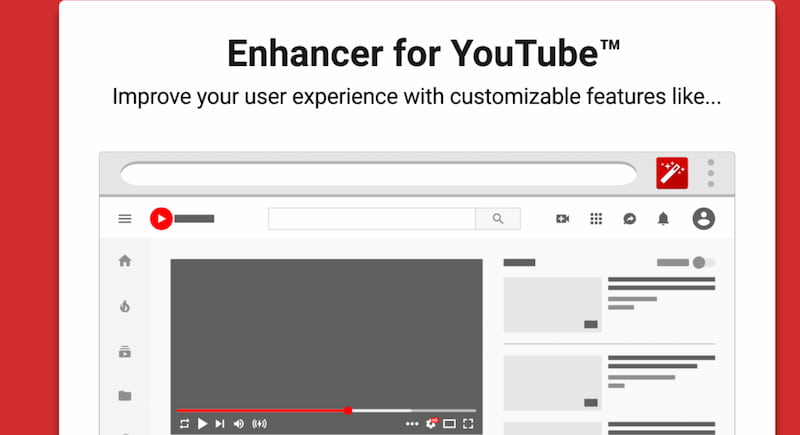
Key Features
• Easily change the volume and playback speed.
• Speeds up playback by up to 16 times.
• Offers to enhance videos using filters.
• Provides contract features and enhanced brightness.
Video Color Enhancer
Best for: casual viewers who want a simple brightness/contrast boost without digging through settings.
The primary function of the well-known web video improvement tool Video Color Enhancer is color enhancement. It enables you to enhance the overall quality of videos by adjusting brightness, saturation, contrast, and other factors. This video quality enhancer plugin is easily found in the Chrome Web Store by searching for it. To install it, locate it and click the Add to Chrome button.
Click the Extensions button in the top right corner to access the video quality enhancer Chrome extension after installing it. To view the Video Color Enhancer's interface, select it. As you can see, you may adjust the brightness, contrast, saturation, blur, invert, and sepia to enhance the viewing experience.
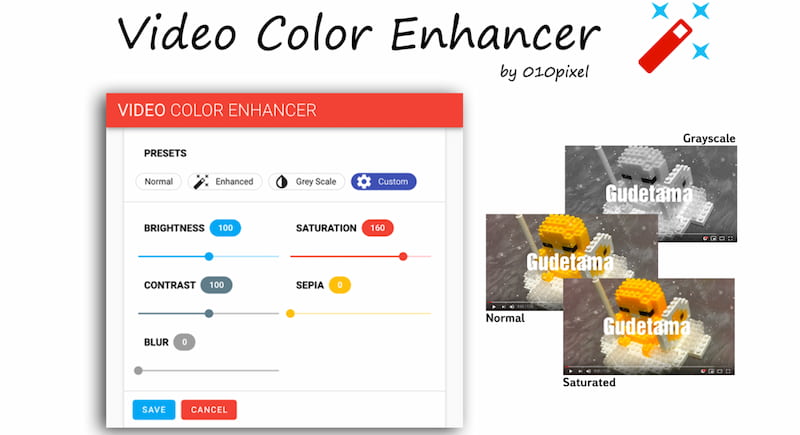
Key Features
• Easy to use and has a brightness adjustment feature.
• It provides contrast, a Sepia filter, and video saturation.
ProdYouTivity
Best for: students and professionals who use YouTube for learning and want fewer distractions.
ProdYouTivity YouTube Enhancer & Shorts Remover can assist in making watching YouTube on Chrome better overall. Among other things, it lets you turn off things like comment sections and suggested videos. This video enhancer extension has a ProdYouTive button for you to quickly switch to a productive mode. You can change the brightness, volume, and playback speed of web videos using keyboard shortcuts or the extension's UI.
Key Features
• Adapt the replay speed to your preferred rate of learning.
• Ads, comments, and other distracting content should be blocked.
• Making notes and bookmarks on certain content is simple.
• For later watching, arrange your videos into playlists that are simple to manage.
HTML5 Video Tag Enhancer
Best for: tinkerers who want per-video color grading on any site.
There are many uses for this HTML5 Video Tag Enhancer web browser plugin. Through color modifications, brightness, contrast, saturation, hue, and grayscale, all crucial for choosing the ideal colors for YouTube videos, it serves as an audio and video quality enhancer.
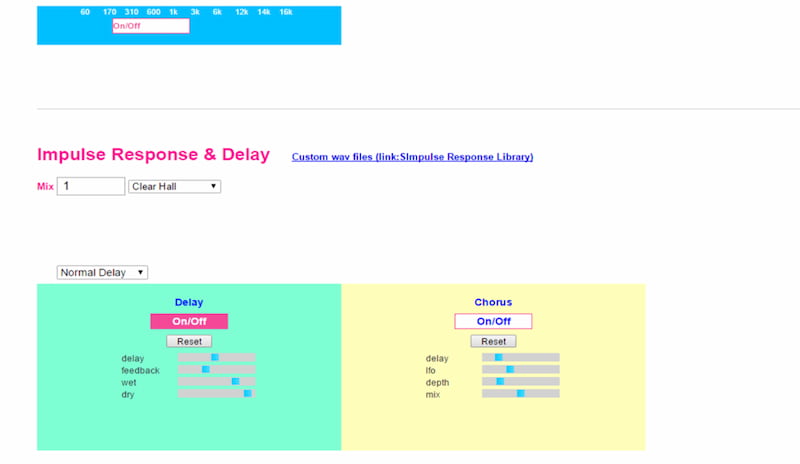
Key Features
• Important attributes:
• Settings for color tweaking.
• Options for sound effects.
• speed of playback.
• It can loop videos.
Video Effects for YouTube and Audio Enhancer
Best for: viewers who want both visual filters and audio enhancement in one place.
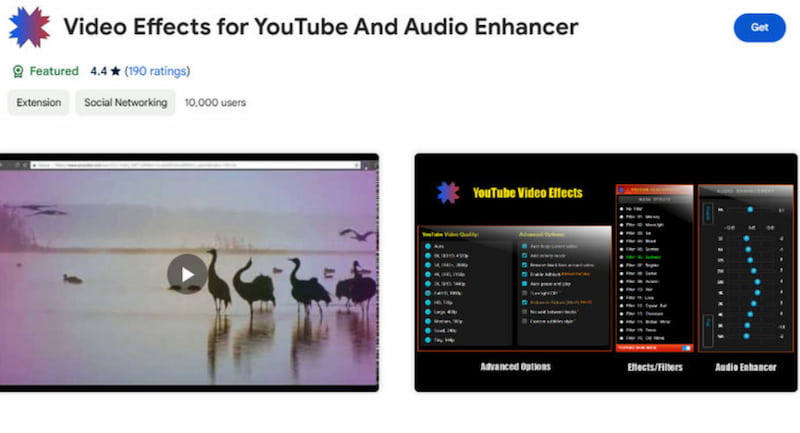
Videos on YouTube platforms are enhanced via the Audio Enhancer tool and Video Effects for YouTube. It is the greatest extension choice because it provides a large range of YouTube video filters, from sharper to drab gray. A wonderful feature for people who wish to change the colors in YouTube videos is that it gives users a variety of filter options. Users can use it to intensify or subdue the colors.
Key Features
• It is easy to use and provides a variety of YouTube video filter effects.
• reduces eye strain by matching the YouTube theme.
• By default, it selects and plays YouTube videos of the highest quality.
• Full-screen YouTube videos are automatically shown.
• Play, pause, auto-loop, and audio enhancement options.
Part 3. Bonus: Best Video Quality Enhancer for Offline Watch
Despite their claims to enhance video quality, Chrome add-ons usually function by applying tweaks and filters. To improve the sharpness or clarity of videos, you must change brightness, contrast, saturation, and other factors. To improve edges and details, some video quality enhancer plugins use sharpening filters. Usually, that results in higher viewing quality and clarity. The actual resolution won't be raised by these improvement settings and actions, though.
You may simply increase the overall quality of all the films you have filmed, downloaded, and received by using powerful video improvement software like VidHex Video Upscaler. It is specifically made to improve aged, grainy, low-resolution, and fuzzy videos and make them smoother, crisper, and clearer.
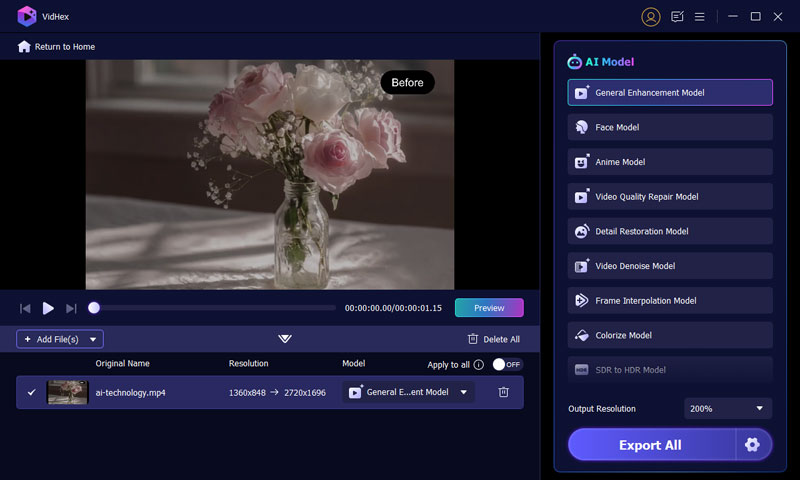
Step 1. On your PC, download and launch VidHex. Select the Video Upscaler tool after adding the video you wish to improve.
Step 2. Depending on your demands, you can upscale your video to 2x or 4x. You can select the appropriate mode from the AI Model drop-down list if you wish to interpolate frames to videos or enhance video resolution. Additionally, it provides a variety of upscaling options, including anime and the real world.
Step 3. This AI-powered video enhancer employs the latest AI technology to add details, reduce background sounds, raise resolution, adjust visual effects, and perform many other associated enhancing activities. After previewing the improved video, you can Export it in the format and quality of your choice.
Prefer a visual walkthrough? Watch the video below for more details.
Part 4. How We Test Video Upscaler Chrome Extensions
To build this list, we tested every extension in Chrome on a mid-range Windows 11 (8th-gen Intel CPU, integrated GPU):
•Test videos: the same 480p and 720p clips played on YouTube, Netflix, and local HTML5 playback.
•What we found: none of the classic extensions performed true AI upscaling. Genuine upscaling only came from WebGPU AI tools and desktop software like VidHex.
Part 5. How to Choose the Right Video Upscaler Extension
•Just want YouTube to look better? Choose Enhancer for YouTube+.
•Colors look washed out? Choose Video Color Enhancer or HTML5 Video Tag Enhancer.
•Need genuine AI upscaling? Use VidHex.
•Need to upscale your own videos to real 4K? Use VidHex on desktop.
Part 6. FAQs about Video Upscaler Chrome Extension
Are these extensions capable of 4K video upscale?
Few AI-powered ones can replicate 4K. The majority enhance sharpness and clarity, but they don't convert low-resolution videos into actual 4K. They enhance, not enlarge, the video's appearance.
Will my browser be slowed down by a video upscaler?
Usually not. The majority of extensions are real-time and lightweight. However, there may be some performance decreases while using older devices or when utilizing numerous extensions.
Can I also increase the frame rates of my videos?
No. Visuals are enhanced by these technologies, but frame rates are not. You'll need specialized software like VidHex or Topaz Video AI if you want smoother motion, like 60 frames per second.
Conclusion
Although Chrome extensions provide fast video adjustments, they can only be used with the browser. The better option for complete control and potent AI upscaling is VidHex. Get VidHex now to enjoy genuine HD or 4K quality outside of the browser and elevate your offline videos to a new level.

- Upscale videos to 4K/8K with AI.
- Increase FPS for smoother videos.
- Colorize B&W old recordings.
- Brighten the low-lit footage.
- Remove noise with details retained.


