



 VidHex — Enhance video quality with AI
 Enhance video details and clarity with AI technology and get stunning, high-quality video in any scenario.
Fixing Pixelated Video Using an AI Video Enhancer Tool

As the modernity of streaming and content creation allows humans to produce high-quality video content to optimize and show as many details and stunning visuals as possible to the human eye, users cannot be guaranteed to always have that 4K-like resolution in every video. Depending on how they handle the video footage, sometimes mishandling a video from multiple shares or simply uploading it on a platform can have an effect on the overall quality of it, resulting in the video being blurry or sometimes getting pixelated at some point.
As video pixelation is a type of distortion to a video where certain parts of the video appear to be blurry or larger squares of pixels appear instead of smooth details, it can happen to any video of any quality, especially when one isn’t knowledgeable about handling video clips. But fret not, as this article will delve into the answer most users are looking for, defining why a video clip gets pixelated, listing some methods for fixing pixels on videos conveniently, as well as proper export settings, and how users can prevent pixelation in their videos through this guide’s tips.

Contents:
Part 1. Why Is My Video Pixelated?
There are various reasons why videos get pixelated, and before one can learn how to troubleshoot or navigate their way in fixing their pixelated videos, it is important to have a basic knowledge as to why your video gets pixelated so that you will know how to resolve it and what to do with it later on. In this section, we identify various factors behind your video pixelation.
• Low Video Resolution. Recording a video with a low resolution, or at least below the standard video resolution, can increase the presence of larger pixels appearing in the video. As lower video resolution means fewer pixels to work with, it results in less detail being captured, and the pixels get even more evident when the video is played on a larger screen.
• Video Compression. When a video gets compressed, video resolution is guaranteed to be lost to make up for reducing its file size. And when this is done at an excessive rate, the video gets blurry to the point that it will lose all the details and become softer when playing the video.
• Outdated Video Encoding. Having to let your video undergo an older encoding process or have that low bitrate can lead to certain video pixelation, especially when uploading to online platforms, as it is known to compress video to allow the web to load the video easily.
• Poor Video Recording Lighting. Recording in a low-light environment can also contribute to why a video gets pixelated, as lower lighting can make the video have more noise and pixelation, struggling to capture details, especially in darker areas.
Part 2. Method 1: Fix Pixelated Video with an AI Tool
The first method one can use to fix a pixelated video is to use an AI tool that can automate the video pixel-enhancing process without the user struggling with how to do it, and without causing more problems to the video. An AI tool such as VidHex AI Video Enhancer can help assist user to recover the loss pixel or better improve the overall video detail and quality to have that 4K-like video quality resolution in the video. What’s more, VidHex is not just a tool that addresses one video problem; it is powered by multiple AI models, extending its video enhancement capabilities to include detail restoration, color recovery and correction, as well as improving video quality.
VidHex is a lightweight software tool for desktop devices that doesn’t require advanced knowledge to navigate or use the tool, as it revolves around user convenience, delivering a very straightforward user interface yet functional for all video concerns.
Step 1. Go to the official webpage of VidHex AI Video Enhancer; from there, download and install the software tool on your desktop device (macOS or Windows).
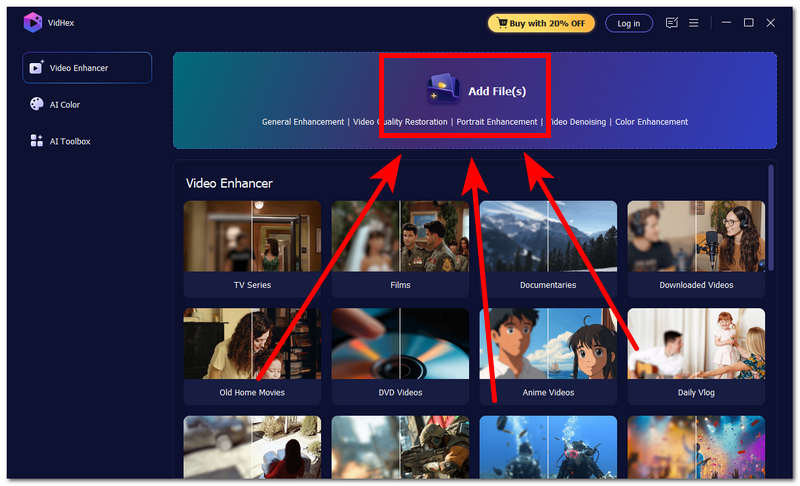
Step 2. Once installation is complete, open the VidHex AI Video Enhancer software tool and load the video file you wish to have its pixels restored by clicking on the Add Files field situated in the middle section of the tool’s interface.
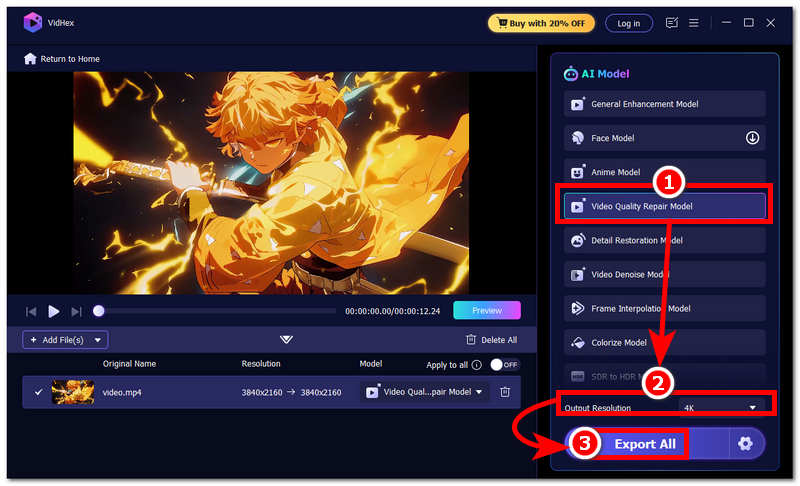
Step 3. Once the video file is loaded into the tool, head over to the right-side corner of the tool, then from the list of AI Models available within VidHex, locate and click the Video Quality Repair Model and proceed to click on the Output Resolution situated in the lower part of the tool and set your resolution to 4K.
Step 4. After you have changed your Output Resolution size, proceed to click on the Export All button to have your video exported to your desktop device.
Part 3. Method 2: Re-Exporting Video with Higher Bitrate & Resolution
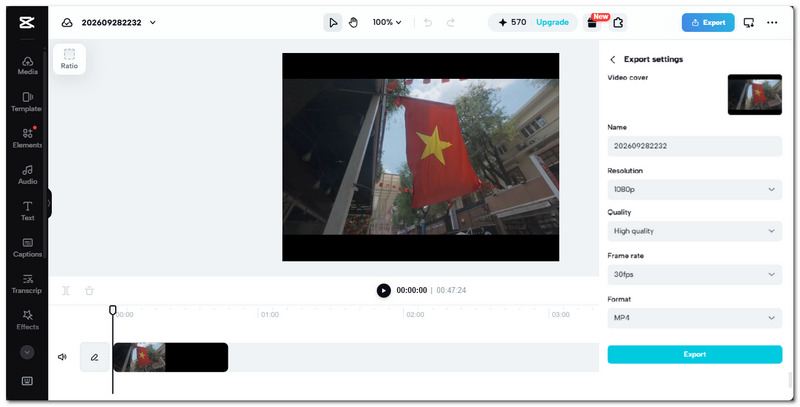
When you are using a video editing program and want to export your video, you get a pixelated result. Try to go back into your video editing program and check your export settings. As editing your video is one thing that affects your video quality, export setting makes decides the quality of your video, so be sure that you check your export settings and try to adjust your video bitrate and resolution settings as high as possible, as high bitrate and resolution tend to make the video as clear and detailed as possible; however, doing this makes the export process longer and makes the video file size larger.
Part 4. How to Prevent Video Pixelation
In this section, you will learn effective ways and easy-to-remember tips for preventing future pixelation in your video.
• Record in High Resolution. When recording a video, make sure that you set your camera device to a standard or higher resolution to ensure that your video is more detailed.
• Use Good Lighting. When shooting a video or scene for either personal or project use, be sure that you have good lighting in order for your video subject to have that well-lit look in the video clips, hence avoiding the presence of noise and pixelation compared with recording under a low-light environment.
• Store Videos in High-Quality Formats. Make sure that when exporting your video project, be sure to use the right export settings to avoid lowering the overall quality of your video.
Part 5. FAQs about How to Fix Video Pixelation
Can a pixelated video be fixed?
Yes, but it will still depend on the severity. That’s why using the right tool is important, such as a video enhancer app, as it can help address video quality issues, especially pixelation problems and address them accordingly.
How can I fix a pixelated video without losing quality?
By default, users can ultimately fix their pixelated video without losing quality when they have their video project file with them. By going back to the video project file, it will allow them to re-export their video project at the highest resolution as it can be.
Conclusion
This guide has concluded that video, regardless of its quality, can suffer from various quality problems, especially when mishandled. This guide has explored why a video gets pixelated by listing some of the possible factors why it occurs, providing users with two methods on how users can fix their video using a reliable tool and the default method, which involves going back and re-exporting their video file with their video editing software tool, and lastly providing some tips on how users can avoid the occurrence of video pixelation in the future by taking note of a few things before recording a video and using the right resolution. But none of those things matter if users are using a fake video enhancer tool; however, in this guide, we have explored and used a type of video enhancer tool that has wider AI enhancement capabilities with a straightforward user interface for users of all types.

- Upscale videos to 4K/8K with AI.
- Increase FPS for smoother videos.
- Colorize B&W old recordings.
- Brighten the low-lit footage.
- Remove noise with details retained.


