


 VidHex — Enhance video quality with AI
 Colorize your B&W footage with intelligent AI, making old movies vivid with vibrant colors.
How to Colorize Black and White Videos with AI


I remember the first time I tried to colorize an old black-and-white video. It took me hours — splitting clips frame by frame, tweaking colors manually in Photoshop, and still ending up with something that looked off. That was before AI stepped in.
You no longer need advanced color grading skills or hours of manual editing to colorize black-and-white videos. Modern AI tools can analyze your footage, add realistic colors automatically, and produce impressive results in just a few minutes. In this guide, we'll compare some of the best options—from desktop software to online tools—so you can choose the one that best fits your needs.
Contents:

Part 1. Why Bother Colorizing Black and White Footage
You may want to colorize black and white videos for several reasons. Some black and white footage may be old and distant to viewers accustomed to color media. Adding color makes it more natural and real. That can easily increase the emotional connection. Sometimes, you can make a black and white video color to enhance the viewing experience. Compared with black and white footage, color can evoke stronger emotions.
Colorizing a black and white video can help improve visual clarity. The process can restore details and enhance quality. Colorization can add a sense of depth and texture that might be less apparent in B&W footage. In some cases, you may use colorization to create a specific mood.
Part 2. Colorize with VidHex Video Enhancer
For most users, manually colorizing a black and white video is not a preferred option. Instead, they want a quick, convenient way to add colors. Fortunately, AI-powered tools make it possible to complete the video colorization much easier than before. Restoring and colorizing black and white footage is no longer a time-consuming, frame-by-frame manual process.
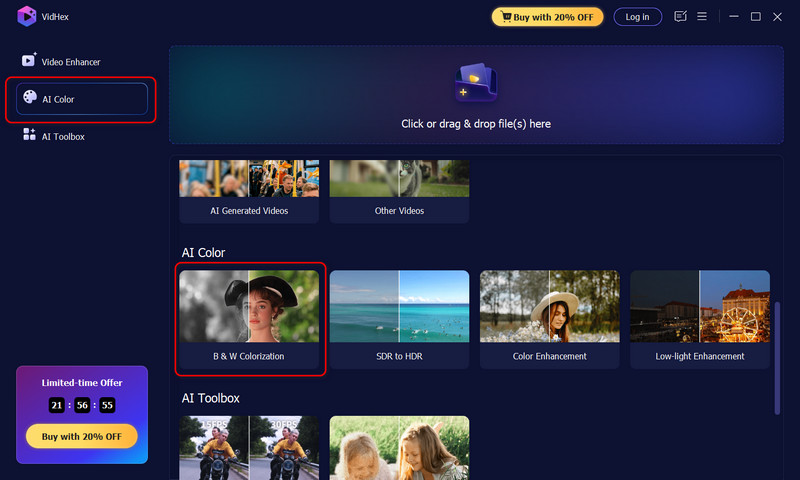
Step 1. Download and launch VidHex Video Enhancer on your computer. From the menu on the left side, go to the AI Color section. Click the first B&W Colorization tab. You’ll be led to import your B&W footage.
Also, you can directly drag your footage to the importing area at the top of this interface.
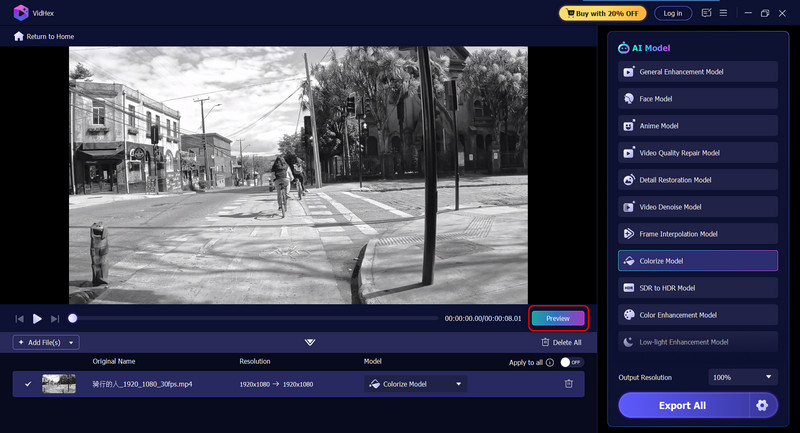
Step 2. As you can see in the new screen, various AI models are listed on the right panel. To colorize a black and white video, we can choose the Colorize Model. Once loaded, you can play it with the built-in player. And under the player, there is a Preview button.
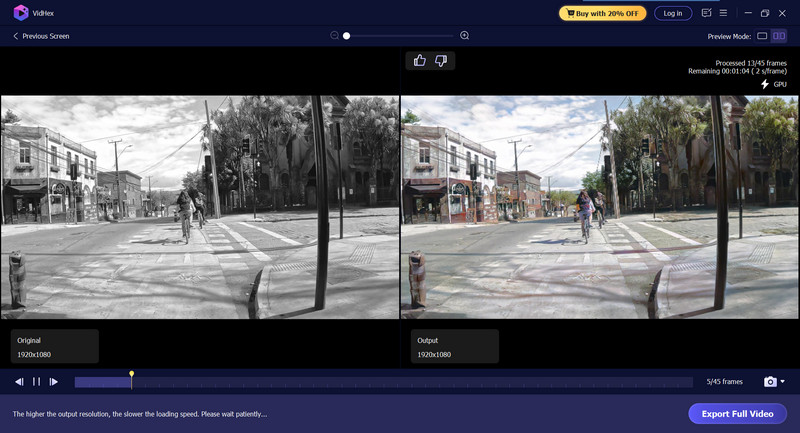
By clicking it, you can directly check the colorized version and compare it with the source footage. If you are happy with the result, you can directly export it by clicking the Export Full Video button.
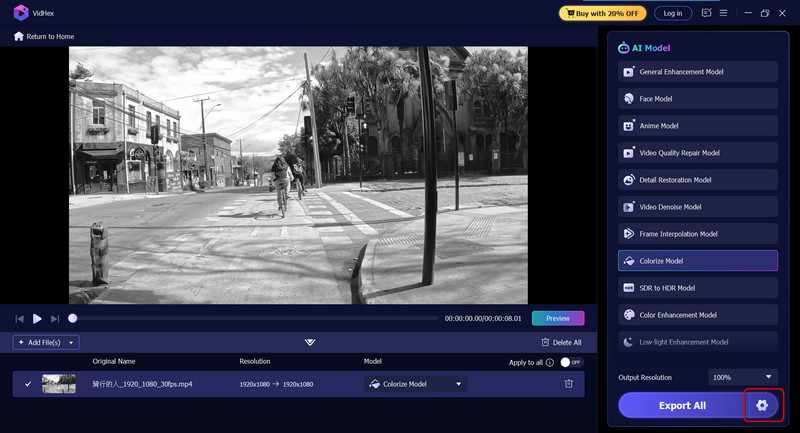
Step 3. Also, you can go back to the home window and click the Settings icon next to the Export All to adjust various related options as you like, including format, bitrate, encoder, resolution, etc.
Then, hit the Export All button to export your colorized B&W result.
Prefer a visual walkthrough? Watch the video below for more details.
Part 3. How to Choose a Video Colorization Tool
Color Accuracy: Check how naturally the tool handles skin tones, skies, plants, and other details. If you're restoring historical footage, try a short sample clip first to see whether the colors look believable.
Processing Speed: Rendering times can vary a lot. Some tools take more than 10 minutes to process a one-minute video, so faster software can save you a lot of time when working with longer clips.
Pricing: Free versions often limit video length, export quality, or add watermarks. Before choosing a tool, make sure the paid plan fits both your needs and your budget.
Privacy: If you're working with personal, confidential, or sensitive videos, a desktop application like VidHex or Topaz keeps your files on your computer instead of uploading them to the cloud.
Output Quality: Pay attention to more than just the resolution. Consistent colors between frames, natural-looking results, and flexible export options all play a big role in the final video.
Part 4. How to Add Color to a Black and White Video Online
When you want to make a black and white video color, especially while dealing with a short clip, you can try using some online color enhancers. Some popular AI-powered video colorization tools allow you to add colors and generate high-quality outcomes easily. Popular ones include Kolorize, neural.love, Screencastify, EditingTools.io, and PopularPays.
Please select a preferred tool and navigate to the specific product page of its video colorize tool. Upload your black and white video clip and let the AI tool do the rest. Once uploaded, you may get various options or features to edit the footage. Some may allow you to generate a preview video. Then, proceed with the video colorization and download the colorized video on your device.

You should know that most AI-powered video colorizer tools are not free, even though they claim to be free. You will be required to upgrade to a paid plan or purchase necessary credits to proceed.
Part 5. FAQs About Colorizing Black and White Videos
Question 1. How do you colorize a black-and-white video in CapCut?
CapCut has a dedicated AI-powered picture colorizer to add colors to your black and white photos. However, it currently does not have built-in AI functions to colorize a black-and-white video. You can use VidHex Video Enhancer first, then refine the result in CapCut.
Question 2. Can I manually add color to a black and white video?
Yes, you can manually add color to a black and white video. It requires patience and related editing skills. Generally, you need to split the video into individual frames and then make the frame-by-frame coloring. Use a video editing tool like Premiere or DaVinci Resolve to convert and split the video into frames. Then, colorize each frame in software like Photoshop or GIMP. You can also apply color correction filters or masks to add colors.
Question 3. Is it possible to change a certain color in a video?
Yes, you can change a specific color in a video using various methods. First, there are some powerful video editors that carry related functions for you to do that, such as DaVinci Resolve, Premiere Pro, Final Cut Pro, and HitFilm Express. You can use related features to select and replace certain colors. Use color selection tools to isolate the target color and then adjust the saturation, hue, and more to shift the color. Several AI-powered tools are also available to change a certain color in a video. They use advanced AI to replace colors contextually.
Question 4. How long does AI video colorization take?
It depends on the clip length, resolution, and the tool you're using. In our tests, a 30-second 1080p clip took about 45 seconds on VidHex. Longer videos scale roughly linearly.
Question 5. Can I manually colorize a video if I don't want to use AI?
Yes, but it's tedious. The traditional workflow involves splitting the video into individual frames, coloring each frame in Photoshop or GIMP, and recombining them in Premiere Pro or DaVinci Resolve. For anything longer than a few seconds, I'd strongly recommend an AI tool — the manual approach is really only worth it if you need pixel-perfect artistic control.
Conclusion
If you're colorizing a short clip and don't want to install any software, you can use the online tool that lets you upload your video and get started in just a few minutes. If you're working on longer projects, want more control, or prefer to keep your files on your own computer, VidHex Video Colorizer is the better option.
Both tools use AI to colorize the video. The main difference is convenience versus local processing. If you're unsure which one is right for you, try the free trial with a short clip and compare the experience yourself.

- Upscale videos to 4K/8K with AI.
- Increase FPS for smoother videos.
- Colorize B&W old recordings.
- Brighten the low-lit footage.
- Remove noise with details retained.


