


 VidHex — Enhance video quality with AI
 Upscale video to HD/4K with AI technology with no quality loss and enhance detail and sharpness.
Upscale Video Resolution in Canva: Video Upscaler Overview

Can you upscale video resolution in Canva? Yes, it is possible to use Canva, a design platform, to create high-definition videos in seconds without much effort through its AI online upscaler tool, which can be seen in both the platform and web-based version of the tool. Canva lets users create amazing graphics easily within the platform without needing professional design software or technical knowledge. This makes Canva a go-to tool for students and novices to handle their design needs.
Although Canva isn't the go-to platform for editing video files, it offers basic video enhancement tools for simple edits, including its Canva AI Video Upscaler. As video quality is crucial in today's fast-paced content production, every creator or user should aim for crystal-clear, noise-free footage when uploading or exporting to enjoy unrestricted playback quality. That’s why this article explains how Canva can upscale a video, how to increase video resolution within the platform, its limitations and an alternative AI video upscaler for more powerful resolution enhancement.
Contents:
Part 1. How to Upscale Video in Canva?
When it comes to upscaling video in Canva, users have several ways to upload their video file to the platform for direct upscaling. You can do this by searching for the official Canva AI Video Upscaler website or by browsing Canva's software to find the section where you can upscale your video.
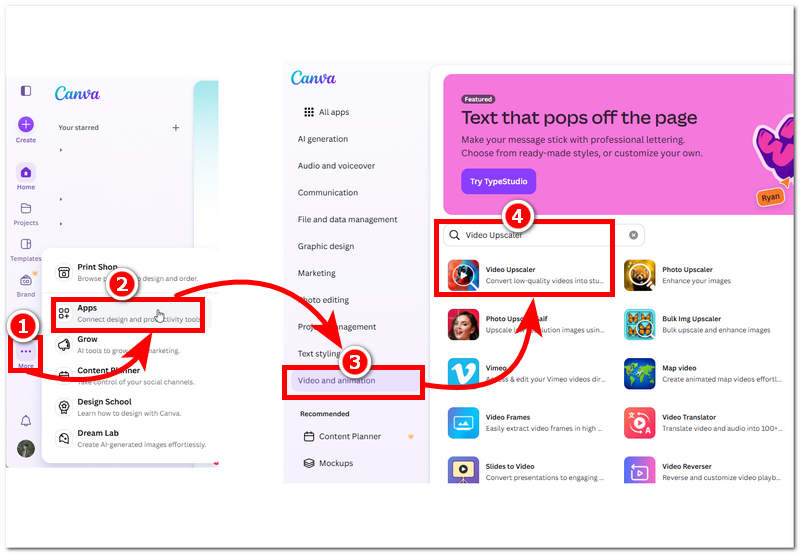
Step 1. Open Canva software on your device. Once the software is open, go to the ellipses (three-dot) menu to access Apps; click it to proceed.
Step 2. After opening the Apps Section, locate the Video and Animation section, then search for the Video Upscaler tool to access the Canva Video Upscaler tool.
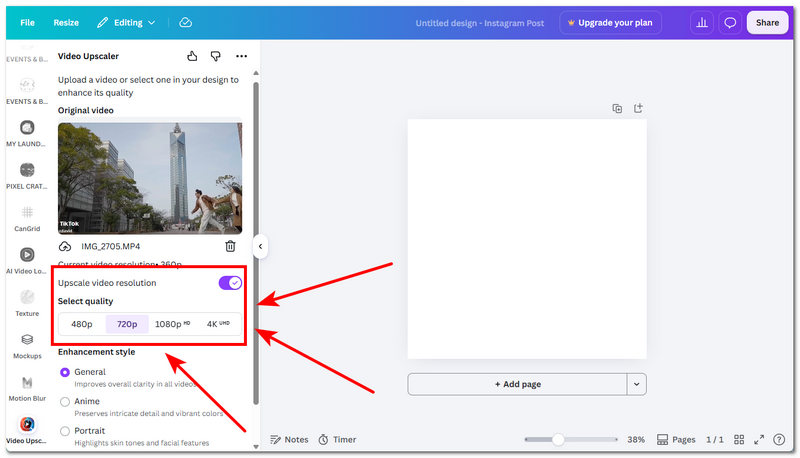
Step 3. After accessing the Video Upscaler tool, simply upload your video file into the platform and once your video is loaded into the Canva Video Upscaler tool, you may choose your preferred video quality of which you wanted your video file to be upscaled with. Once done adjusting your video upscaling settings, simply export your video to make it available in your Canva directory folder on your device.
Part 2. Canva Video Upscaler Limitations
While Canva AI Video Upscaler is accessible and supports Canva's many functions for producing high-quality graphics and content, the video upscaler function has its own limitations, which this section outlines based on our user experience.
• While it certainly produces impeccable, true video upscaling quality, using it will be challenging for free users, as it is available to premium users.
• It currently supports the MP4 video file format.
• It comes with file size and video duration limitations.
• It is still in the development stage, in which results may vary and can appear inaccurate at times.
• Processing the upscaled video can take time depending on the user's internet connectivity and system of the device.
• May struggle to recover some of the lost details in the video.
• Has a limited number of fine-tuning options and controls for adjusting the upscaling result.
• May struggle with upscaling old videos and low-bitrate videos.
Part 3. Canva Video Upscaler VS. VidHex
| VS | Canva Video Upscaler | VidHex Video Upscaler |
|---|---|---|
| Pricing Model | Accessible via subscribing to Canva premium and is using credit-based system. | Can be used easily and instantly for free. |
| Processing Location | Cloud-based | Local Desktop |
| Video Upscaling Preset | 480p, 720p, 1080p, 4K | X1, x2, x4, 720p, 1080p, 2K, 4K, custom resolution |
| Upload Size Limitations | 30 MB | No file size limitations. |
Part 4. How to Upscale Canva Videos with VidHex
If using Canva to upscale your video feels too costly for your needs and you want a more user-friendly, functional option with more control to fine-tune upscaling strength, you will like the VidHex AI Video Upscaler tool. This tool offers a variety of video-enhancing options and AI models to address the specific fixes you want for your video upscaling. With its AI model, VidHex can perform general enhancement, face-detail upscaling, video quality repair, and more, making it more versatile than Canva Video Upscaler.
Key Features:
• Easy to download and lightweight on desktop devices.
• Free and easy-to-use video enhancement and upscaling tool.
• It is an AI-powered tool with multiple AI models developed for specific video enhancement needs.
• It has automatic color correction and accurate functions.
• Fast video upscaling tool.
• Capable of converting blurry videos up to 4K and customized video resolutions.
• Has tons of features and customization options for fine-tuning video files.
How to Use the VidHex AI Video Upscaler Tool
Here's a step-by-step guide on how to upscale video:
Step 1. Download and install the VidHex AI Video Upscaler software tool on your desktop device.
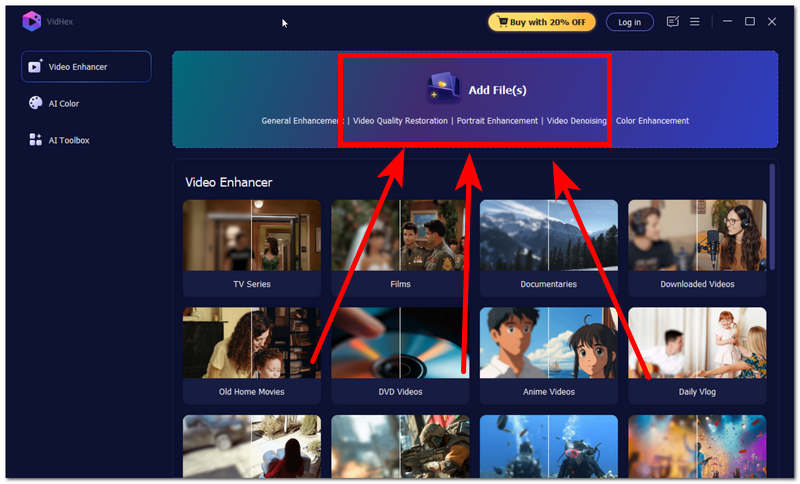
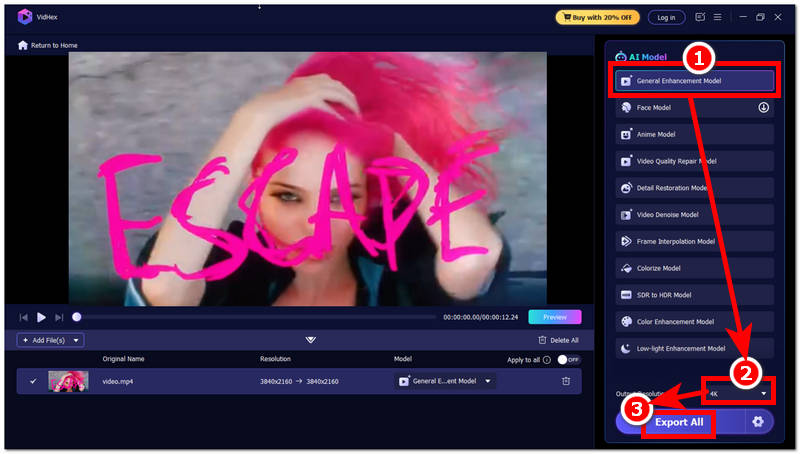
Step 2. After installing the software, open it and, from the main interface, click the Add Files field, then select and load the video file you want to upscale.
Step 3. Once the video file is loaded, click General Enhancement Model in the AI model list, then go to Output Resolution at the bottom of the tool and set it to 4K.
Step 4. After you have changed your Output Resolution size, proceed to click on the Export All button to have your video exported to your desktop device.
Part 5. FAQs about Upscaling Video Resolution in Canva
Will increasing video resolution in Canva improve video quality?
When it comes to upscaling video in Canva, it is not guaranteed that a video will improve after you increase its resolution within the platform. As increasing the dimensions of the video can only make the canvas size appear larger, doing it on a video file only makes its flaws more evident to the eye. To improve video quality, use a video upscaler tool before adjusting the video resolution.
What is the best video resolution to use in Canva?
The best resolution for a video in Canva video enhancer is 1920 x 1080 pixels (1080p) for high-quality videos uploaded to social media platforms. Users should check whether the platform uses a vertical or landscape frame to maximize resolution and avoid cropping when uploading.
Is exporting a video at a higher resolution the same as AI upscaling?
No, exporting your video at a high resolution does not equate to having the video be upscaled. AI video upscaling reconstructs visual details, while exporting at a higher resolution enlarges the video's dimensions.
Conclusion
In this guide, users learned that Canva, a design tool, has a dedicated video upscaling function for simple, instant video upscaling. Because it helps Canva users avoid other tools when they need to upscale a video, this feature is useful and accessible. However, having access to it has some sort of limitations, which this guide also points out, that’s why, when users desire more functions and want to go beyond simple upscaling on their video, this guide also lists a reliable alternative upscale video Canva tool to allow them to have free access to a type of AI video upscaler tool that has a lot of controls and AI models to use for their needs.
- Upscale videos to 4K/8K with AI.
- Increase FPS for smoother videos.
- Colorize B&W old recordings.
- Brighten the low-lit footage.
- Remove noise with details retained.


