


 VidHex — Enhance video quality with AI
 Enhance video details and clarity with AI technology and get stunning, high-quality video in any scenario.

X Twitter heavily compresses uploaded videos (25 Mbps bitrate cap, mobile-focused re-encoding), causing blurriness. You can use an AI upscaler like VidHex AI Video Upscaler either before uploading or after downloading X videos to boost clarity up to 4K with natural-looking enhancements.
Twitter AI Video Upscaler Tool Overview and Guide to Use
Quick Answers:
For best quality uploads to X:
• Format: MP4, H.264 video + AAC audio
• Resolution: 1080p (higher gets auto downscaled)
• Bitrate: 25 Mbps; FPS: 30/60
• Max file size: 512 MB
• Max length: 2 min 20 sec
• Aspect ratios: 16:9 / 1:1 / 9:16
X (formerly Twitter) is a social platform where users share short posts, images, and videos to reach audiences and spark conversations. To conserve bandwidth and enable fast playback across devices, X re‑encodes videos, which degrades visual quality.
You do not have to put up with blurry footage. You can enhance and start consuming high-quality video or media files by using an AI Twitter Video Upscaler tool. This guide covers why X compresses videos, how to upscale clips- either before upload or after downloading- and the optimal upload settings for maximum video quality on X.

Contents:
Part 1. Why Do Twitter (X) Videos Always Look So Blurry?
Twitter (X) has never been secretive about how it handles user-uploaded media on its platform, as it applies heavy compression during playback and uploading for a variety of reasons, which this section will name a few.
• Bitrate Limitations. Twitter put a bitrate cap of 25Mbps to make videos playable across multiple devices without the need for high internet connectivity.
• Mobile Optimization. Twitter does aggressive re-encoding on uploaded and playing videos to make them smoother to play on mobile devices, as Twitter is a mobile-based app to fit smaller screens and enable easy video playback.
Part 2. How an AI Twitter Upscaler Can Save Your Content
In this section, we will demonstrate the use of a Twitter or X Video Upscaler, which can be categorized into two uses: upscaling the user's videos before uploading them on the platform and upscaling the video that the user sourced from the platform. Regardless of whether the user is the one uploading or wants to save a certain video from Twitter to their device for personal use, the use of a reliable and functioning AI video upscaler like the VidHex AI Video Upscaler tool is necessary.
What this AI Video Upscaler does is that it is capable of upscaling any videos of lower quality into 4K quality thanks to the AI technology that is integrated into the tool; not only does it offer a variety of AI model tools to enhance video, but it also makes the overall process a lot faster. In addition, VidHex has this natural clarity feature, ensuring that every video that goes into the tool has a very natural-looking result, differentiating it from over-processing or overdoing the upscaling method. Lastly, the tool is lightweight on the user's device and has a straightforward user interface, ensuring that all types of users can use it and do their own Twitter video upscaling.
In a real world test using the same original 4K source footage for comparison: one clip was uploaded directly to X, while another was processed via VidHex AI Video Upscaler before upload. VidHex reduced some video noise, yet subtle AI-induced smearing appeared in fine details. Its so-called “natural clarity” delivered limited real-world improvement and could not fully offset quality degradation caused by X’s subsequent platform side compression.
How to Upscale Video Before Uploading
Step 1. To ensure that your video is in the highest quality possible before uploading it on Twitter, make sure to upscale it using VidHex AI Video Upscaler on your desktop device. If you do not yet have the program, be sure to visit the VidHex official website to download and install the tool on your desktop device.
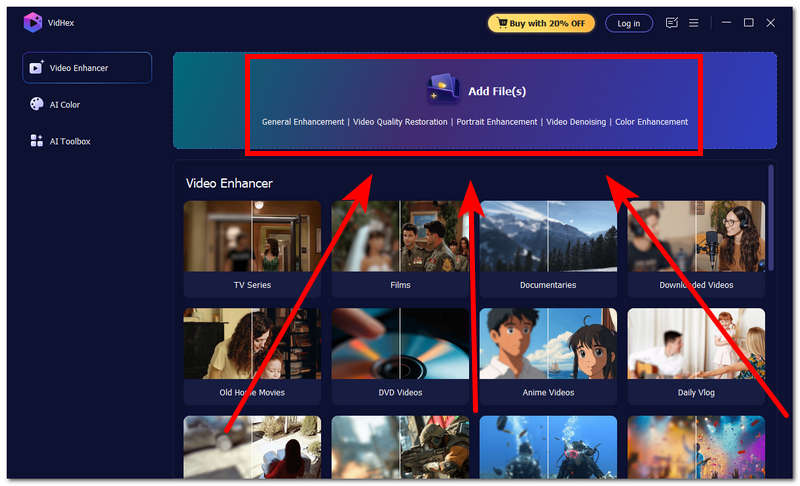
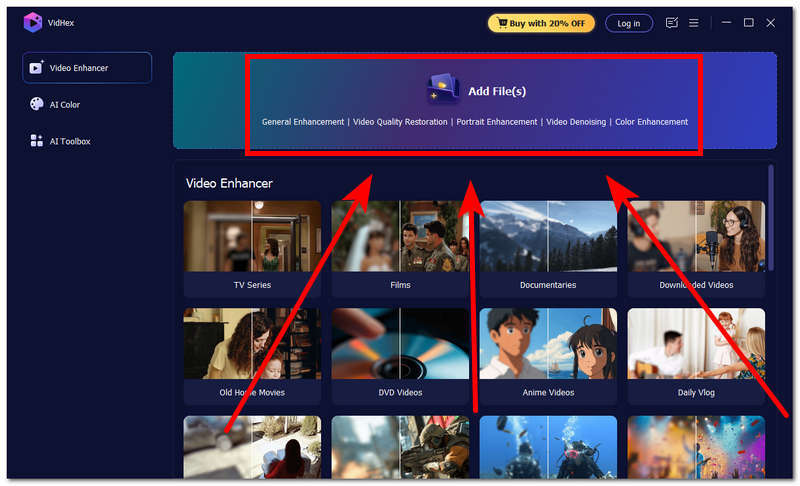
Step 2. Once the VidHex tool is installed on your desktop device, open the program and, from its main interface, click the Add File(s) section to upload the video you want to upscale before you upload it to Twitter (X).
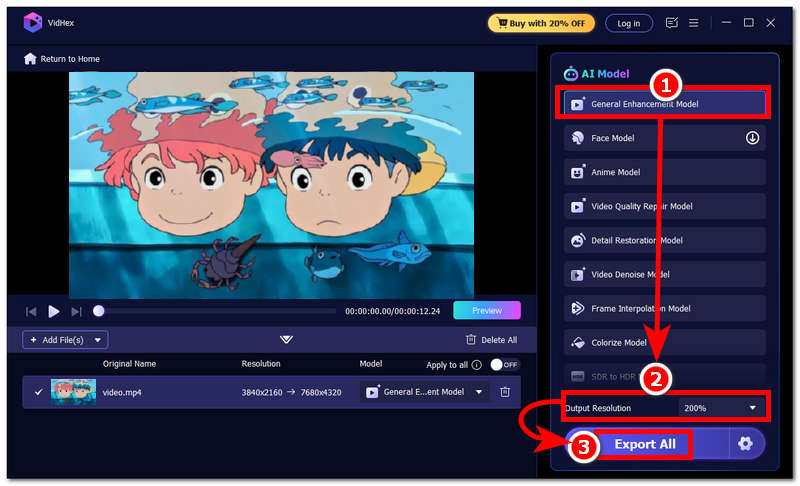
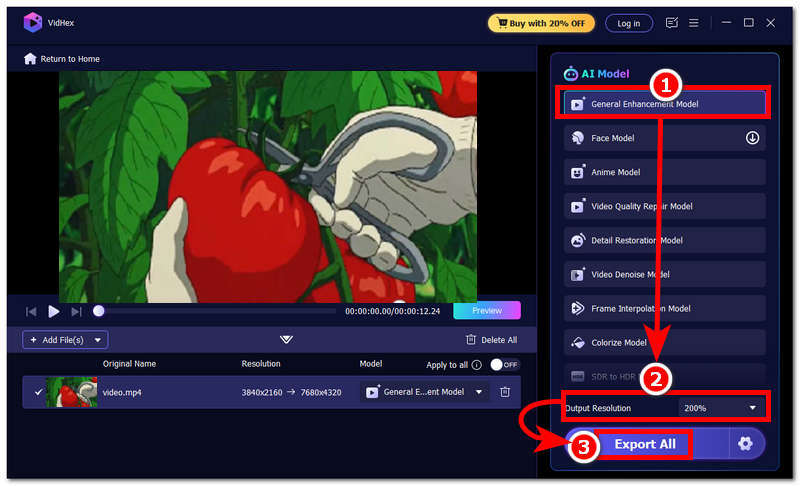
Step 3. After your video is loaded in the program, you will be redirected to a new window where all AI models and adjustment settings are located. From there, simply select the General Enhancement Model from the list of AI models available.
Step 4. Lastly, change the Output Resolution of your video to 4K or to your preferred video output quality and after that click on the Export All button to have the real-time AI video upscaling process begin and save your videos to your designated folder on your device.
How to Upscale Videos After Downloading
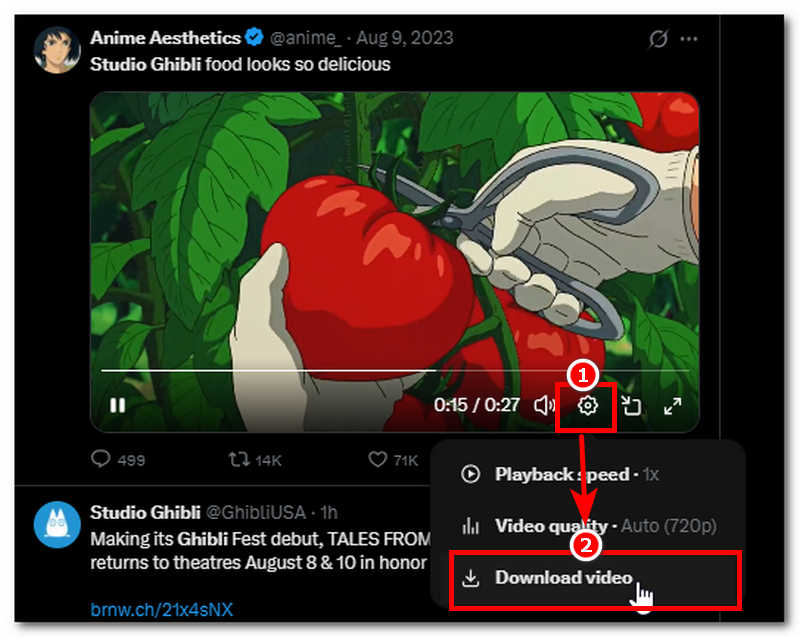
Step 1. To upscale a video after downloading it or sourcing it from Twitter (X), simply scroll your Twitter (X) feed and look for a video you want to download.
Step 2. After downloading a video from Twitter (X), proceed to open your VidHex AI Video Upscaler tool on your desktop device.
Step 3. Once the VidHex tool is open on your desktop device, proceed to click the
Step 4. Once the video is loaded into the tool, click on the General Enhancement Model from the available AI Models in the tool, and change your Output Resolution to 4K. After changing it, you may now click on the
Part 3. Best Twitter (X) Video Settings for Maximum Quality
Regarding the best Twitter (X) video settings to use when uploading or playing a video on the platform, the maximum available quality should be used as the video resolution, especially when playing a video on Twitter (X). However, it doesn’t work that way, as doing it can either just degrade your video quality heavily or, worse, quit it completely. So the best Twitter (X) video setting to use is to follow or match the Twitter (X) internal compression rule.
1. When exporting a video, be sure to use an MP4 video format, and use an H.264 video codec alongside an AAC audio codec, as Twitter supports these formats and does not re-encode them when uploading to the platform.
2. In terms of video resolution, be sure to set your video resolution to 1080p only, as higher resolution than 1080p will be automatically downscaled by Twitter (X).
3. Keep your video bitrate to 25Mbps so that the video is playable across devices.
4. Export videos at 30 or 60 FPS to ensure smoother video motion playback.
5. Make sure to keep your video files you wish to upload on Twitter (X) under 512 MB in file size and with a duration no longer than 2 minutes and 20 seconds max.
6. Keep your video aspect ratio to 16:9, 1:1, or 9:16 to ensure that your video won’t be cropped or potentially fail to upload on the platform.
Part 4. FAQs about AI Twitter Video Upscaler
Can AI upscale Twitter videos to 4K?
Yes, AI video upscaling tools like VidHex allow users to upscale videos to 4K quality, increasing the original video resolution, doubling its clarity and detail, and making the overall video quality playable and watchable.
Does AI restore quality lost after uploading to Twitter?
Yes, AI can improve and help recover missing details and colors when a video on Twitter (X) has been compressed to the point that it becomes blurry. Hence, while there are levels and limitations to what an AI assistant can do in upscaling compressed video, using a tool that has powerful and functional AI models can make a difference in the result, especially in recovering details in the video.
Is it possible to upscale Twitter videos without downloading them?
No, an uploaded video on Twitter (X) cannot be upscaled within the platform,m as the platform can only offer adjusting the resolution to the one available in the settings. To upscale a Twitter (X) video, users will have to download the video from their device and use a third-party video upscaler to effectively upscale the video to their preferred quality.
Conclusion
Twitter (X) videos can be somewhat entertaining or useful in generating and engaging in a conversation about trends and other relevant issues that people like to talk about; as such, to make things a lot easier to load and play on the platform, Twitter (X) set limitations on the video by requiring higher-quality video on the platform. Through this, some videos can sometimes appear blurry,y hence making it less appealing to watch. Through this, the use of a third-party AI Twitter upscaling tool such as VidHex has become normalized as an assistive tool to help Twitter (X) users recover the missing details in the compressed videos by having the video be automatically processed and upscaled by the tool, hence making the video revert back to its original quality or better.
VidHex – AI Video Enhancer
- Upscale videos to 4K/8K with AI.
- Increase FPS for smoother videos.
- Colorize B&W old recordings.
- Brighten the low-lit footage.
- Remove noise with details retained.


