VidHex — Enhance video quality with AI
 Enhance video details and clarity with AI technology and get stunning, high-quality video in any scenario.
How to Unblur Videos: Using Three Methods Tested (Online, Desktop, Premiere)

Video blurring is a common problem in a video file caused by external factors or sometimes innate in the device taking the video. Regardless, video blur is something that is deemed solvable now, as there are tons of tools developed for video enhancement that help remove blur from videos using AI. As there is no way to predict or tell how one video becomes blurry in some parts, one can only anticipate what tools to use when such a problem occurs. Hence, in this guide, readers will get to know a variety of tools to use for unblurring a video file via the use of an online tool, a software-based tool, and a traditional way of removing blur, as a comparison to help readers know what will be their ideal and most convenient way to enhance and unblur videos.

Contents:
Comparison Chart
| VidHex Online | VidHex Software | Traditional Tool | |
|---|---|---|---|
| Key Features | Instantaneous, straightforward, simple, high-quality video blur removal, and cloud-based tool. | Lightweight on-device, full-featured tool, AI-powered, it has multiple AI models, and access to multiple customization video enhancement settings. | Professional video editing software tool as well as tons of customization settings and options for video enhancement. |
| Availability | Web-based tool and free to use tool | Software-based tool and free to use tool | It can be free with limited access to features but most of the time subscription-based. |
| Limitations | Requires stable internet connectivity. | Unavailable for web-based users. | Steep learning curve, subscription-based tool. |
Part 1. What Causes Blur?
As previously mentioned, video blur can be caused by internal or external factors that affect the video, such as the process of editing or recording the video or sometimes by playback, compression and file transfer. Thus, in this section, we list some causes of video blur.
• Some main causes why blurring occurs in the video are internal factors; this pertains to incorrect camera settings resulting in the video having that unfocused look.
• Videos uploaded on various social media platforms are most likely prone to suffering from video blur, as social media platforms tend to lower or compress video to meet the platform's media limitations.
• Downloading or sourcing a video from an online source under poor internet connectivity may result in the video file being corrupted or blurry in some areas.
Part 2. Online Video Unblurring Tool
Best For: Small-size video enhancement, no need to install anything.
VidHex AI Video Enhancer Online is a perfect tool for an accessible video unblurring tool, as it completely runs on a web page. This tool offers a more user-friendly and instantaneous video unblurring tool for users, as it can process videos simply by uploading the video to the webpage. VidHex AI Video Enhancer Online tool automatically upscales low-resolution videos as well as removes video blurriness at the same time.
Key Features:
• AI-powered tool with three model settings available.
• Free and easy-to-use tool.
• Customizable output resolution and quality.
• One-click AI video quality and video unblurring tool.
• AI color correction and enhancement.
• No installation required.
How to Use Online Video Unblurring Tool
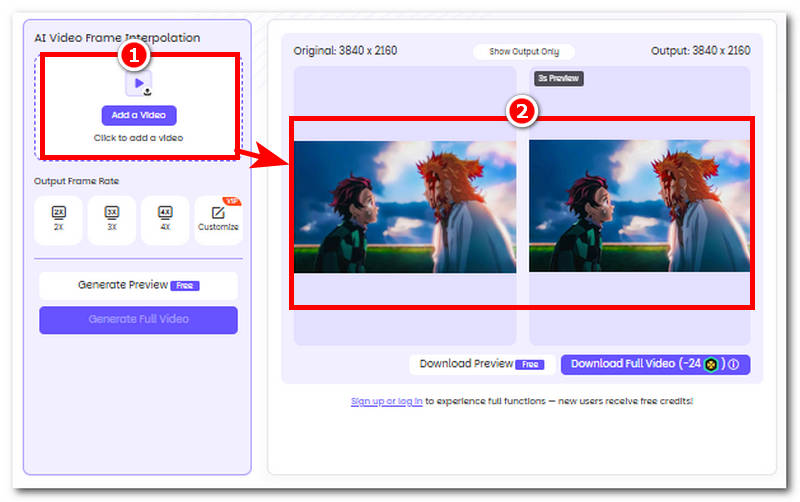
Step 1. Head over to the VidHex AI Video Enhancer Online official webpage.
Step 2. From there, load your video file into the tool's designated video file field by clicking on the Add a Video file button.
Step 3. And just like that, a video file will be automatically upscaled, and video blur will be removed in an instant; wait for the tool to finish.
Part 3. Software-Based Video Unblurring Tool
Best For: Offline local video enhancement, unblur video in batch.
When users are looking for a more refined video unblurring tool with a bunch of areas to control the strength and play around with the enhancement settings, then using a software-based tool, VidHex AI Video Unblur tool is perfect for the task. This tool comes with various AI model enhancement features that allow users to access all kinds of video enhancement functions.
Key Features:
• Lightweight on desktop devices.
• Free and easy-to-use tool.
• It has accurate unblurring capabilities.
• It has automatic color-accurate correction functions.
• Capable of converting blurry videos up to 4K.
• Has tons of features and customization options for fine-tuning video files.
How to Use Software-Based Video Unblurring Tool
Step 1. Download and install the VidHex AI Video Unblur software tool on your desktop device.
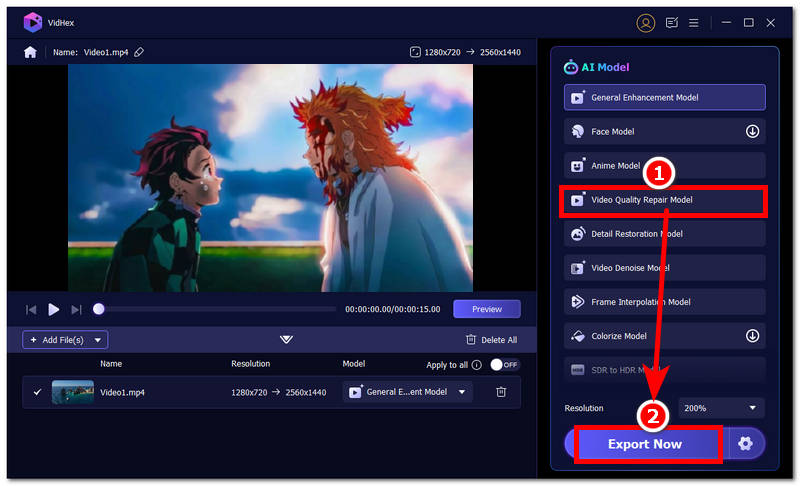
Step 2. After installing the software tool, proceed to open the program and, from its main interface, click on the Add Files field in the tool interface and load the video file you wish to fix and remove the blurriness from it.
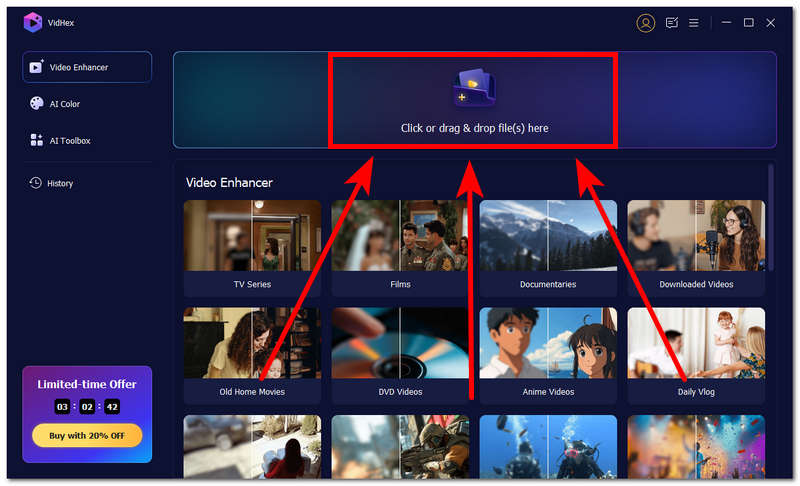
Step 3. Once the video file is loaded into the tool, proceed to click on the Video Quality Repair Model in the AI model list of the tool.
Step 4. After that, proceed to click on the Export button to have your video exported to your desktop device with completely enhanced quality and no blur.
Part 4. Default Video Enhancer Editing Tool
Best for: Users who need advanced editing functions with a sharpening tool.
For a more traditional and default approach in an attempt to unblur videos file using your preferred video editing program, here’s a look at what would be the general process in doing it using a traditional method of removal of blur in videos.
Step 1. Open your video editing program; for this guide, we’ll be using Adobe Premiere Pro.
Step 2. Once the program is open, proceed to load your video file into the program by dragging it into the timeline track view.
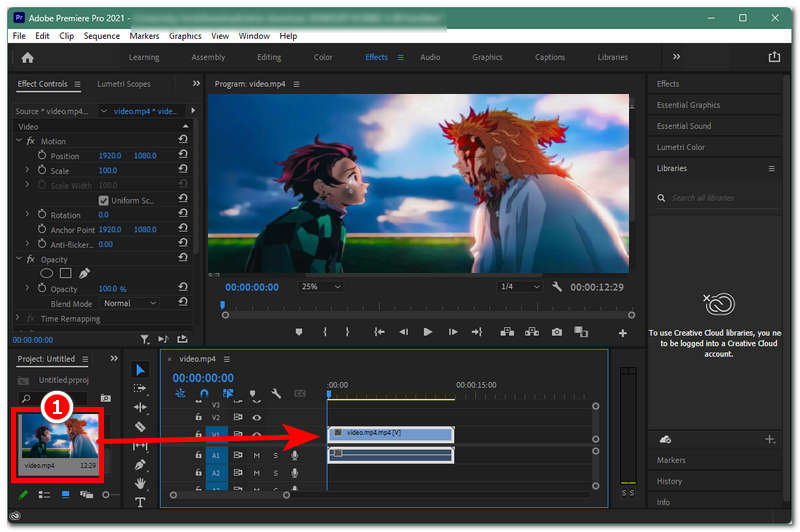
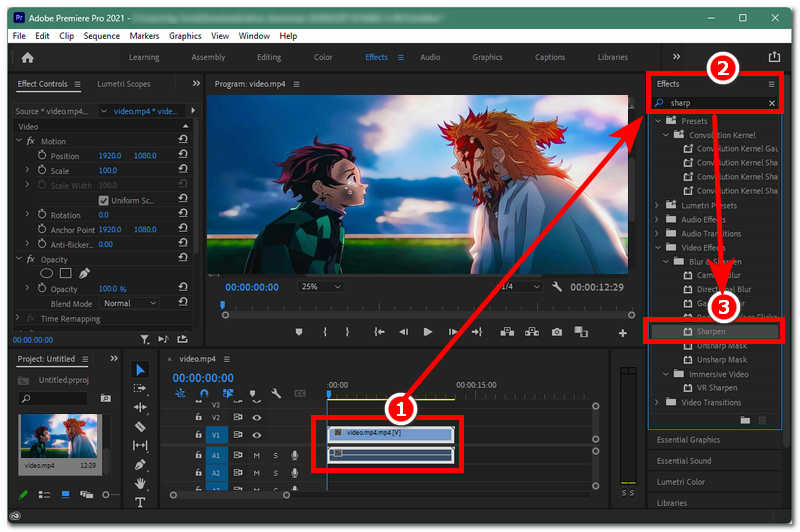
Step 3. Once the video file is loaded into your timeline track view, proceed to head over to your Effects section and simply look for and apply the Sharpen effect and AI Denoise to your video file.
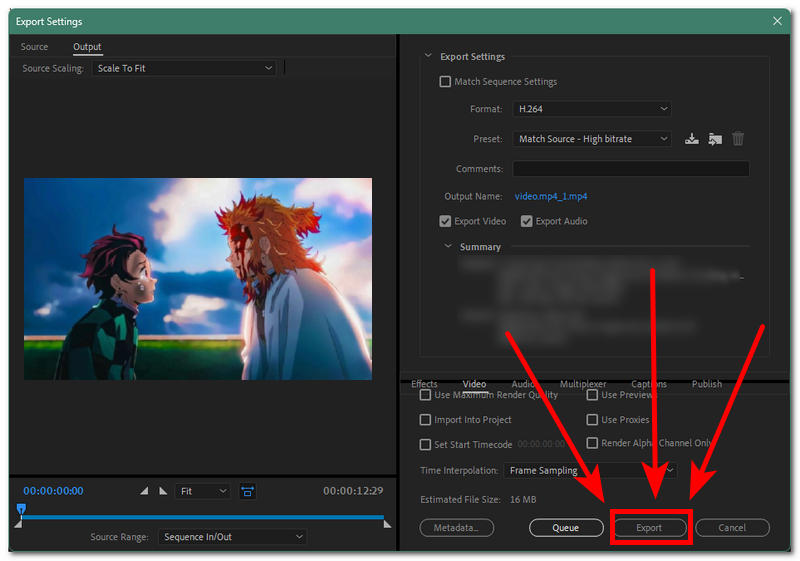
Step 4. After playing with the sharpen strength setting, you may proceed to export your video by pressing Ctrl + M on your keyboard, and from there select the right export setting, then proceed to click on the Export button.
Part 5. FAQs about How to Unblur A Video
Can AI unblur a video?
Yes, there are tools to unblur videos with AI, as it makes things almost automatic, as it handles all the tasks by analyzing the video frame-by-frame and applying adjustments and enhancements to the video, like removing blur.
Does increasing sharpness actually unblur a video?
Not always, as increasing a video's sharpness does not mean that the blur in the video will be removed; increasing the sharpness mainly enhances the video clarity to make it clearer, but with video blur removal, it can enhance and improve the overall video quality.
Conclusion
In this guide, readers have learned that unblurring a video is not impossible even if they don't have extensive knowledge to do it, as there are now tools and programs that can do the task instantly for user convenience. This guide lists not only three ways to unblur a video free from hidden charges but also their key features, as well as simplified steps for readers to follow when using the tool for video unblurring needs.

- Upscale videos to 4K/8K with AI.
- Increase FPS for smoother videos.
- Colorize B&W old recordings.
- Brighten the low-lit footage.
- Remove noise with details retained.