VidHex — Enhance video quality with AI
 Enhance video details and clarity with AI technology and get stunning, high-quality video in any scenario.

You can boost Sora-generated video quality to 4K via two main free approaches:
Optimize prompts: Add cinematic atmosphere & lighting details, define camera movements and focal points, reference visual styles, and specify audio/dialogue requirements for sharper, more consistent output. Sora native output only hits 720p or 1080p; vague prompts and platform compression also cause blurriness.
AI video upscaling (VidHex AI Video Upscaler): Import your Sora video, pick the general enhancement model, set output resolution to 4K, then export a new polished file. This tool denoises, restores facial details, fixes motion flicker, and counteracts social media compression, without altering your original video file.
Enhance Sora AI Video Quality: 2 Ways for 4K Quality Videos
Quick Answers:
AI‑generated videos are no longer experimental; marketers, educators and e‑commerce brands widely use them to create large‑volume, low‑cost content. As a text‑to‑video tool, Sora produces limited‑quality native footage, which degrades further due to platform compression for non‑personal use. There are two ways for users to generate 4K-quality AI videos by enhancing Sora AI video quality: refining prompts or using a trusted third‑party AI video upscaler.
Contents:
Part 1. Why Do Sora AI Videos Sometimes Look Blurry or Low Quality?
Sora AI-generated videos often appear low quality or have a blurry feel; this can be attributed to a mix of technical limitations set by the AI model, default generation settings, or compression format when uploading to certain platforms. As the generated AI videos of Sora have only 720p to 1080p video quality, it can be said that using the video as it makes a difference when uploading it to platforms. While Sora 2 introduces meaningful improvements such as extended runtime, enhanced realism, and native synchronized audio, it still lacks native true‑4K export capability.
While the compression of the video quality is normal and often overlooked by users in taking into consideration why their AI videos appear blurry or low quality after uploading them on social media, it can be said that the problem is a minor one and there can be ways to counter it in a way that this guide will discuss later. Thus, listed in this section are some of the reasons why Sora AI‑generated videos often appear low quality or blurry.
• 720p up to 1080p video resolution limitations.
• Unclear prompts when generating AI videos on the platforms.
• Sora AI is struggling with frame-to-frame consistency, causing video motion micro-flicker or soft dissolve in motion.
• AI videos produced by the likes of Sora AI can appear blurry or low quality when uploaded to various social media platforms, as each platform has its own encoder that crushes and lowers the video quality just to fit into the platform.
Part 2. Method 1: The Best Sora Prompts for High-Quality Videos
The first method to create much higher-quality AI videos in Sora AI is to be as descriptive and detailed as possible and use high-quality prompts when ordering the AI to produce AI videos. In this way, not only will the user be able to tell the AI a specific detail about how they want their AI videos to look, but they can also generate very solid and consistent quality. Thus, in this section, we will list the best tips for users to keep in mind when using and generating their best prompts in producing high-quality AI videos with Sora AI.
1. Use a cinematic tag to describe your video mood; this can be done by describing the ambiance, lighting, and even specifying a look that you want your AI videos to have.
2. Outline camera video motion; this can be done by describing a very detailed thing about how you want the camera motion in your video, but also describing the focal point of the camera.
3. If you can, you may also reference certain imagery that you can use to reference your AI video.
4. Users may also specify in detail if they need an AI video dialogue or not. This is also applicable to having background noise. The key is to be as specific as possible about what you want and do not want to appear or be characterized in the AI video.
Part 3. Method 2: How to Enhance Sora Video Quality with AI Upscaling
After you have learned and gotten the gist of generating high Sora AI videos by coming up with much stronger prompts through various means, then what you should do next is to deal with the re-encoding and compression of your video when you upload it to social media platforms. Multiple third party AI video upscaler tools can serve this purpose; VidHex AI video Upscaler is selected for demonstration within this article. To do this, you will have to upscale Sora AI video quality by using a third party AI video upscaler tool that can assist you in bringing in more details and color, like the VidHex AI video Upscaler tool.
VidHex is the best video upscaler for the task, as it is not only there to help your AI videos upscale, but also the AI technology that is integrated into the tool allows users to have much more control over what kind of AI model to use for targeting a specific AI video upscaling need for the videos.
Key Features:
• Lightweight desktop device AI video upscaler tool.
• Clears video footage, enhances color, and denoises video.
• Supports a wide range of video file formats to upscale.
• It has high-speed processing and exporting.
• Powered by capable AI technology.
• Equipped with multiple AI models for various video upscaling functions.
• It can restore face details.
• Free to use and has a very straightforward user interface.
• Capable of upscaling videos to 4K quality or higher.
• Analyzes video frame-by-frame for consistent and fine video motion details.
• Can handle all sorts of video upscaling needs and problems.
Step 1. Download and install the VidHex AI Video Upscaler to your desktop device (Windows or Mac). Once you have installed the software on your desktop device, proceed to open the tool.
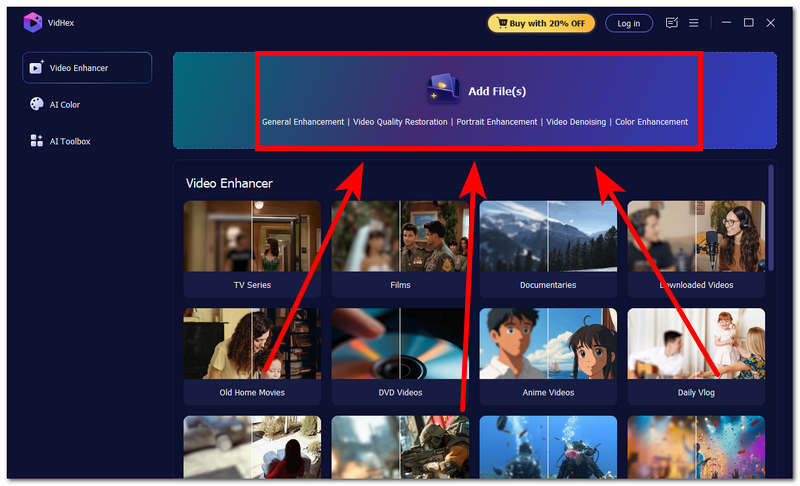
Step 2. From the VidHex AI Video Upscaler main interface, upload the AI video you just generated from Sora AI into the software tool by clicking on the Add File(s) button to proceed.
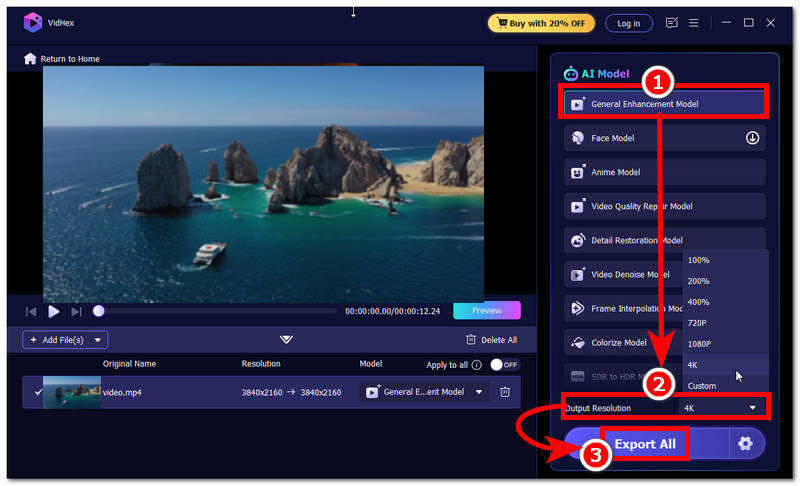
Step 3. Once you have uploaded your AI video into the tool, click on the General Enhancement Model in VidHex; then change the output resolution to 4K or your preferred resolution.
Step 4. Finally, click the Export All button to export your video to your desktop device's designated folder.
Part 4. FAQs about How to Enhance Sora Video Quality
Can I improve the quality of videos generated by Sora?
Yes, users can improve the quality of the video generated by Sora AI by improving their prompt and ultimately using a video upscaler tool for a fuller, high-quality feel to it. This guide has shown the two ways users may need to keep in mind and the steps to follow for more seamless and effective AI video upscaling and high-quality generation.
Will enhancing a Sora video make it look more realistic?
It depends on the generated video. If users tasked Sora AI to generate a realistic-looking video in their prompt, then it is obvious to give them a realistic AI video,o and enhancing it with a video upscaler can only bring certain details and quality to it.
Can I remove noise from Sora-generated videos?
Yes, while users can be specific with their prompt on the AI tool for it not to give them noisy or grainy AI videos, in some cases users can also use the video upscaler tool to remove video flaws like problems in video motion, clarity of the video, and removal of video noise.
Does enhancing a Sora video affect the original file?
No, upscaling or enhancing Sora AI video quality does not affect the original file of the AI video, as users will have to upload the file into the video upscaler tool, and thus the changes made by the tool will be saved as a new file,e creating a copy of the original video file with a more enhanced and polished look to it.
Conclusion
AI videos have become progressively visible in the social media landscape. While there is a concern about the usage of AI-generated videos for various purposes, looking at it on the brighter side, anyone can now produce and create their own AI videos to use. However, it all boils down to the quality and consistency of the AI videos; thus, users need to be mindful and keep the usage of generating AI videos minimal to not excessively abuse its use. When the quality of the AI video is compromised, then users should learn how to create a stronger prompt to use in the AI tool as well as used a powerful and reliable AI video uspcaler tool like VidHex to process and upscale Sora AI video quality to its best which what this article guide just did, it listed some tips on how user can have the best prompt to input in Sora AI as well as the introduction of an AI video uspcaler tool and demonstrate its use teach how to upscale Sora AI video quality using it.
VidHex – AI Video Enhancer
- Upscale videos to 4K/8K with AI.
- Increase FPS for smoother videos.
- Colorize B&W old recordings.
- Brighten the low-lit footage.
- Remove noise with details retained.