


 VidHex — Enhance video quality with AI
 Colorize your B&W footage with intelligent AI, making old movies vivid with vibrant colors.
Adobe Video Color Correction AI in Premiere Pro Guide

Adobe Premiere Pro, a professional, premium-grade video editing software tool, has never stopped improving, making its software seamless and ever more powerful for producing high-quality video. Now, as various tech and tools are on the rise to make things more convenient for users, it has reached new heights with the integration of AI technology, including the AI grading feature in its system. As color grading a video clip is fundamental to a video project, it helps shape the mood of the video, refine and further bring out the visuals in the clips, and overall deliver a polished and professional video project. This AI color grading feature is said to be an innovative approach to the hassle and longer color grading process in video projects. Hence, AI color grading comes into the scene to automate the process and accelerate the user workflow. As much as it is convenient and appears to be useful for streamlining video editing amongst users, this article will specifically delve into defining what AI color correction in Adobe is, how to use the Auto Color feature in Adobe Premiere Pro, and how to fix video footage quality before color grading it in Adobe Premiere Pro.

Contents:
Part 1. What is AI Color Correction in Adobe?
As AI Color Correct in Adobe automates things specially complicated processes and task on users which takes time into making it for them have a more accelerated workflow that simplifies complex color grading on the user end. Moreover, what makes AI color correction attract attention and seem more promising for users and potential use in other projects is that, firstly, the thought of having the color-correcting process almost automatic for users, as the AI tool scans the video frame-by-frame and applies optimal adjustments to it, reduces users' manual intervention throughout the whole process. Secondly, the AI color correction has this impressive intelligent scene matching that allows and ensures the video clips' lighting is cohesive throughout the video project sequence. Last but not least, what makes the AI color correction in Adobe is its skin tone refinement capabilities, which surprisingly recognize skin tones across the video sequence and enhance them naturally and as accurately as possible, ensuring that it does not appear over-processed when playing the video.
Part 2. How to Use Auto Color in Premiere Pro
In this section, we are going to illustrate how one can easily use the auto color functionality within Adobe Premiere Pro. Hence, feel free to follow the simplified and straightforward steps below for an effective application of auto color within your video sequence project.
Step 1. Open the Adobe Premiere Pro software and, from there, load your video clips into the video editing software accordingly.
Step 2. Once your video clips are loaded into the tool interface, simply drag them into the video timeline of the tool and, from there, click on the specific video clip or sequence in your timeline that you wish to apply the auto color function to.
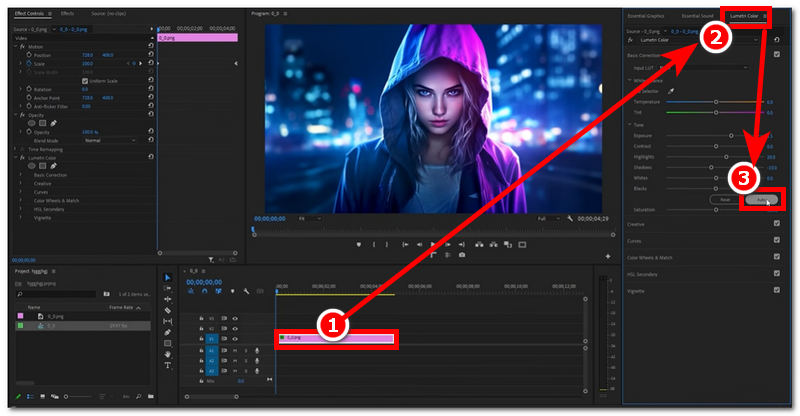
Step 3. Once you have clicked on the video in your timeline, head over to the right corner of your interface, then simply locate the Effects tab, then proceed to the Lumetri Color tab.
Step 4. After tapping the Lumetri Color tab, you will be able to see and access the Auto function or button within it; click on it to simply change your video color sequence in your project.
Part 3. How to Use Color Match in Premiere Pro
To use the color match feature in Adobe Premiere Pro for video color grading, you need at least one reference image or other media to guide the color matching process for your current video sequence.
Step 1. Create or open a project in Adobe Premiere Pro in which you want to perform or apply a color match with your reference frame.
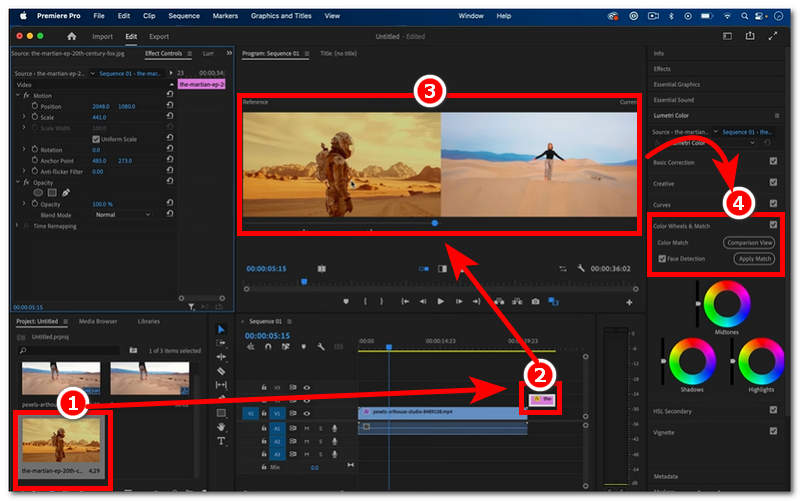
Step 2. Once you have opened your project, simply drag your reference frame into your timeline.
Step 3. Then, go to the Lumetri Color panel, and from there click on the Comparison View to allow you to view your video footage side by side with your reference frame. From there, click on Apply Match to automatically color match the reference frame color into your video sequence.
Why Footage Looks Bad Before Grading & How to Fix It
What this tool does is that it is capable of turning video clips with washed-out or pale colors into color-accurate restorations, which they need; hence, it is also perfect for older video clips that have a black-and-white filter on them, as the tool uses AI that automatically analyzes the video frame-by-frame and detects the scene, people, and landscape and applies color correction to the clips without over-processing them. In addition, apart from giving the video clip vibrant color, it can also retain video quality, and it is also capable of turning SDR videos into HDR for richer video brightness and contrast.
Step 1. Go to the official webpage of VidHex AI Video Colorizer; from there, download and install the software tool on your desktop device and proceed to install the software (macOS or Windows).
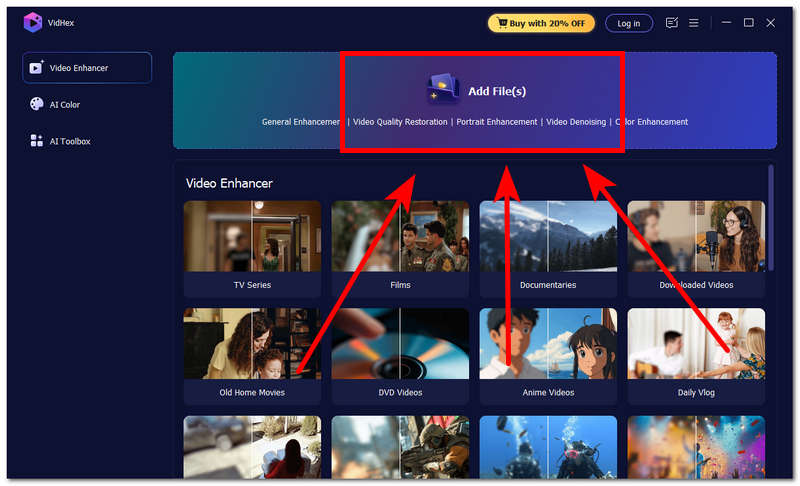
Step 2. Once installation is complete, launch the software and upload the video file you want to change the resolution of in the Add Files field at the top of the interface.
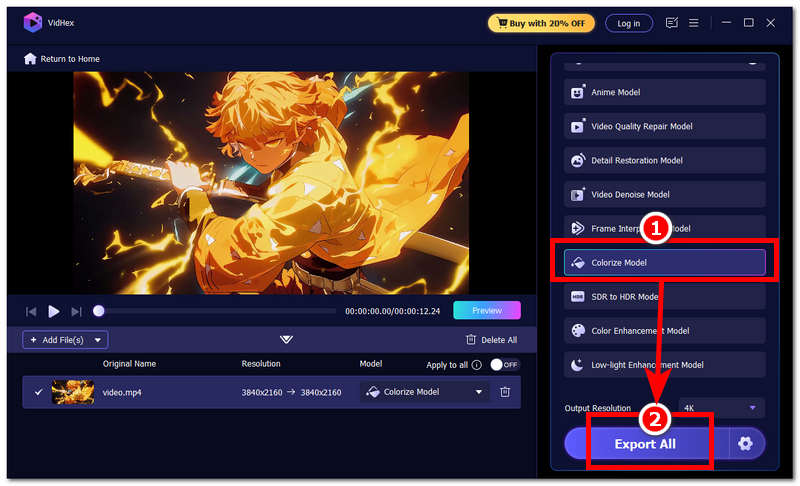
Step 3. Once the video file is loaded into the tool, head over to the list of AI Models available in the software and simply choose the Colorize Model to be able to intelligently colorize your video clips. After that, proceed to click on the Output Resolution situated in the lower part of the tool and set your resolution to 4K or your preferred video resolution by clicking on the Custom setting available in the options.
Step 4. After you have changed your Output Resolution size, proceed to click on the Export All button to have your video exported to your desktop device.
Part 4. FAQs about Adobe AI Video Color Correction
Does Adobe Premiere have an AI color correction tool?
Yes, Adobe Premiere supports the integration and use of AI, specifically with AI color correction or the Auto Color function, to further improve the user experience by automating and allowing users to easily perform color correction on their video footage.
Can Adobe AI fix incorrect white balance?
Yes, Adobe Premiere Pro's Auto Color feature not only helps users with color correction in their project but also extends its reach by improving or adjusting the video clips' white balance.
Conclusion
This article has explained the integration of AI in the field of video color grading, and so much for that, it is within the context of a premium professional-grade video editing tool, Adobe Premiere Pro. This just shows one beneficial effect of the integration of AI into the creative industry by lessening the burden on users during the longer process of video color grading. However, always be responsible when using such a function, as it may still require manual intervention or the user's skill to further refine and ensure that the color grading works well. Thus, in this guide, users have found out that AI Adobe Premiere Pro Color Correction exists and can be significantly helpful for users, but that does not mean that users should completely rely on it. This article also demonstrates, with simplified steps, how one can use the auto color feature and color matching function of Adobe Premiere Pro as an extension of the AI auto color grading and in addition the use of a third-party tool like VidHex also comes in handy when handling washed-out color video clips on the use which they can use to colorize any video clips of age.
- Upscale videos to 4K/8K with AI.
- Increase FPS for smoother videos.
- Colorize B&W old recordings.
- Brighten the low-lit footage.
- Remove noise with details retained.