


 VidHex — Enhance video quality with AI
 Enhance video details and clarity with AI technology and get stunning, high-quality video in any scenario.
4:3 Resolution Overview & How to Upscale 4:3 Videos

4:3 Resolution or 4:3 Aspect Ratio is commonly used in classic monitor screens and certain video projects. 4:3 means the image or video has a width of 4 units and a height of 3 units. This video resolution once dominated the resolution landscape, as it is popularly used and is the standard resolution size for older TV’s and monitors. As old as it sounds, 4:3 still exists and has its purpose in today’s digital age; thus, in this article, we will delve deeper into identifying common 4:3 resolutions, what they are still used for today, the difference between 16:9 resolution, why 4:3 resolution is the standard, and lastly, how to upscale 4:3 video quality and size to fit modern screens in simplified steps.

Contents:
Part 1. Common 4:3 Resolutions (Full List)
In this section, we will list the commonly used 4:3 resolutions, as they are known for being used in classic monitor screens and certain video projects. The list includes the lowest resolution possible, 320 x 240, also known as QVGA, up to 2048 x 1536, also called QXGA.
| Resolution | Pixels |
|---|---|
| 320 x 240 | QVGA |
| 640 x 480 | VGA |
| 800 x 600 | SVGA |
| 1024 x 768 | XGA |
| 1152 x 864 | XGA+ |
| 1280 x 960 | 4:3 HD-equivalent |
| 1400 x 1050 | SXGA+ |
| 1600 x 1200 | UXGA |
| 2048 x 1536 | QXGA |
Part 2. What 4:3 Video Resolutions Are Used For?
As 4:3 resolution videos are commonly used for older cameras, displays, and content that has this near-square frame, the resolutions listed above can be categorized into various uses. Hence, this section will discuss each 4:3 video resolution's purpose.
| Resolution | Use |
|---|---|
| 320 x 240 – QVGA | It is used for older versions of mobile phones and digital webcams that are for producing low-resolution videos. |
| 640 × 480 – VGA | It is found in older generations of digital cameras, webcams and CCTV that produce standard-definition video. |
| 800 × 600 – SVGA | It is used in older generations of computer monitor displays and video screen recordings. |
| 960 x 720 | HD video quality; it is used in older cameras and online or web-based videos. |
| 1024 x 768 – XGA | It is used in older computers and monitor screens, displaying video presentations and video screen recordings. |
| 1440 × 1080 | HD cameras and some broadcast videos. |
| 1600 × 1200 – UXGA | It is used for high-resolution computer or monitor displays and screen captures. |
| 2048 × 1536 – QXGA | It is used for older digital cameras and some professional imaging. |
Part 3. 4:3 vs 16:9: What's the Difference?
4:3 resolution is known as the ‘classic’ as it started out as the standard TV screen size, whereas 16:9 is more modern, offering a more rectangular wide screen compared to 4:3, a square-like frame. For this section, we will list the differences between 4:3 and 16:9.
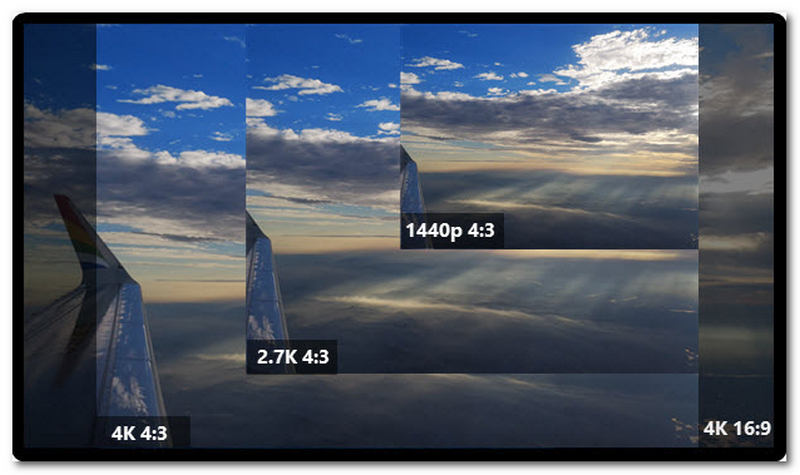
| Ferature | 16:9 Widescreen | 4:3 Standard |
|---|---|---|
| Decimal Ratio | 1.778 | 1.33 |
| Common Name | Widescreen (HD) | Standard (Full Screen) |
| Shape | Wide Rectangular Screen Frame | Square-Like Screen Frame |
| Modern Standard | The current standard for most devices and screen resolutions. | Currently unpopular for modern video standards, but it is still used today |
| Best For | Landscape videos. Movies, gaming, wider screens, and modern device screens. | Video presentation, slideshow, video content, nostalgia, and some photography sizes. |
| Example Resolutions | 1920×1080, 3840×2160 | 1024×768, 1600×1200 |
Part 4. Why 4:3 Was the Standard
Looking back on the progress made in the field of video resolution and aspect ratio specifically, 4:3 was considered the standard, but what really makes it the ‘standard’ is that even ther are now much higher and better screen resolutions, 4:3 is still continuously used not just for older devices and screens, but it has permeated even the modernity of devices and screens today. Hence, in this section we will list some of the reasons why 4:3 was and remained the standard of early video resolution size.
• 4:3 became the standard aspect ratio due to its influence in the early film industry. The ratio closely matched the dimensions of movies, videos, and device screens being developed and created at the time.
• 4:3 became the standard as it has the most compatible format in a lot of industries, from broadcast to filmmakers and devices.
Part 5. How to Watch & Upscale Old 4:3 Videos on Modern Screens
As the modern digital age has come upon us, there are a variety of methods and tools now that allow users to record higher video resolution and even switch between 4:3 and 16:9 and other screen resolutions to meet the end user's needs for video playback or recording. Although it becomes easier for user to choose the right or their preferred video aspect ratio, sometimes it is inevitable to want to convert or upscale 4:3 aspect ratio video to a higher one, especially in order to be able to fit the modern device screen and without worrying about the quality lost in the process.
Hence, for this section, we will introduce users to a reliable software tool, one that meets their desire to upscale any form of video, not just 4:3 video resolution. Moreover, this tool can also be used to improve the overall video quality and detail, as it is powered by AI with various AI models that address specific video problems.
Key Features:
• Lightweight on desktop devices.
• Fast processing and export speed for video upscaling.
• Capable of converting 4:3 old videos to a higher and more modern standard aspect ratio.
• Allows users some control for fine-tuning upscaling results.
• Free and easy-to-use video upscaling tool.
• It is an AI-powered tool with multiple AI models developed for specific video enhancement needs.
• It has automatic color-accurate and color-correct functions.
How to Use the VidHex AI Video Upscaler Tool
Step 1. Head over to the VidHex AI Video Upscaler website and, from there, download and install the software tool on your desktop device (macOS or Windows).
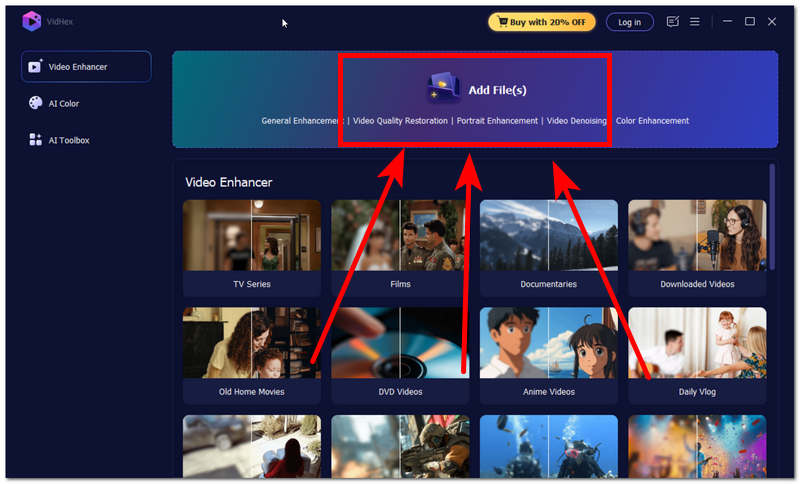
Step 2. After installing the VidHex AI Video Upscaler tool, proceed to open the software and, from its main interface, simply upload your 4:3 video file into the software by clicking on the Add Files button to proceed.
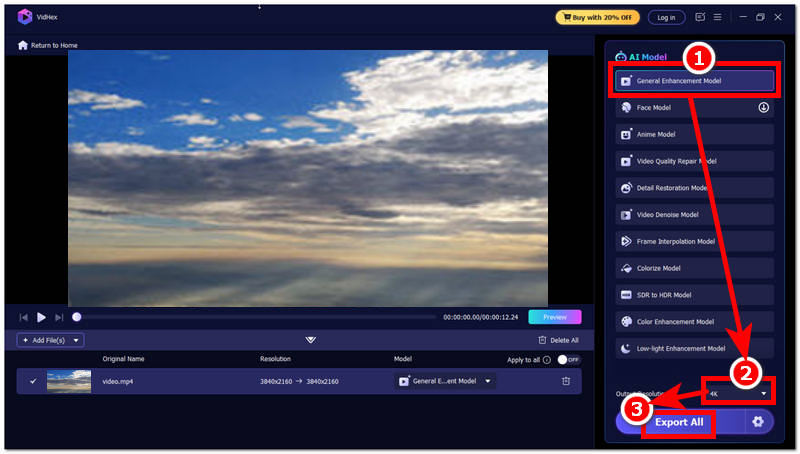
Step 3. Once the video file is loaded into the tool, proceed to click on the General Enhancement Model in the AI model list of the tool and head over to the Output Resolution situated in the lower part of the tool and set your resolution to 4K.
Step 4. After you have changed your Output Resolution size, proceed to click on the Export All button to have your video exported to your desktop device.
Part 6. FAQ About 4:3 Resolution
Can I convert a 16:9 video to 4:3?
Yes, users can convert their 16:9 video to 4:3 by cropping the sides of their video. This is usually done by resizing the video and cutting down the sides of the 16:9 video to match the square-like frame that 4:3 provides.
Does converting a video to 4:3 reduce quality?
Yes, but it depends on the conversion done to the video. While there are many tools that can convert 4:3 video to higher quality, like 16:9 or other formats, the quality may suffer a loss, especially since 4:3 is already an inferior quality compared to 16:9. Thus, to ensure a lossless video quality conversion, users should use a quality and reliable video upscaler tool like VidHex.
Why does my 4:3 video have black bars?
4:3 videos will have black bars on the sides if the video is being played or displayed on a wider screen or modern screen display that has 16:9 or other aspect ratios. This is to avoid stretching out the 4:3 media just to fit into the available screen of the display.
Conclusion
In conclusion, 4:3 resolution may be inferior to the current resolution we have in streaming and display; however, it can not be avoided that 4:3 resolution is the standard and the epitome of resolution. Looking back, while many devices and screen displays offer a bigger and better resolution, 4:3 still exists as it still has its functions for video screens and more. This guide not only explains what 4:3 resolution is about, but also lists a classification of the common 4:3 resolutions, compares it to the 16:9 resolution, as well as demonstrates how 4:3 video can still be converted into other resolution sizes without losing its quality with the help of a modern, developed AI video upscaler tool.

- Upscale videos to 4K/8K with AI.
- Increase FPS for smoother videos.
- Colorize B&W old recordings.
- Brighten the low-lit footage.
- Remove noise with details retained.


