


 VidHex — Enhance video quality with AI
 Enhance video details and clarity with AI technology and get stunning, high-quality video in any scenario.
Is CapCut Still Down? Fast Fixes for Crashes & Network Errors (2026)

You’re in the middle of editing a video. The music is perfectly timed. The transitions look smooth. Then suddenly — the app freezes. Or worse, it crashes and won’t reopen.
If you’re asking "Why is CapCut not working?" or "Why does CapCut keep crashing?", you’re not alone. These issues are common and usually happen for three main reasons: server problems, regional or network restrictions, or device performance limits.
The good news? Most problems can be fixed in just a few minutes. Let’s break it down and treat the problem accordingly. If your issue matches any of the following, you can directly jump to the corresponding section of the article.
| Issue | Potential Causes & Fixes |
|---|---|
| Keep crashing | Server outages device performance overload outdated GPU drivers (PC) overheating (mobile) |
| Unable to load template/network error | Regional restrictions firewall/VPN interference/unstable internet |
| Export failed | Low device storage high-resolution footage overload hardware encoding mismatch (PC) |

Contents:
Part 1. Check Server Problems
Problem: CapCut won’t open, crashes immediately, or all functions fail to load
Cause: CapCut server maintenance, unexpected outages or technical faults on the official side (no issues with your device/network)
Fix: Confirm server status and wait for official restoration
Before changing any device or network settings, always first check if the problem stems from CapCut’s official servers — this saves you from unnecessary operations. Here’s how to verify the server status step by step:
• Visit Downdetector and search for CapCut to check real-time user fault reports.

• Check CapCut’s official social media accounts for maintenance or outage announcements.
• Ask friends or colleagues in different networks if their CapCut app is working normally.
If a large number of users report the same problem, CapCut’s servers are likely down. In this case, the only effective fix is to wait for the official technical team to restore server services. If no outage is reported, the issue is definitely on your device or network, and you can proceed to the following troubleshooting steps.
Part 2. Regional or Network Issues
Problem: Network error prompt pops up, unable to load templates/effects/music, or fails to connect to the server
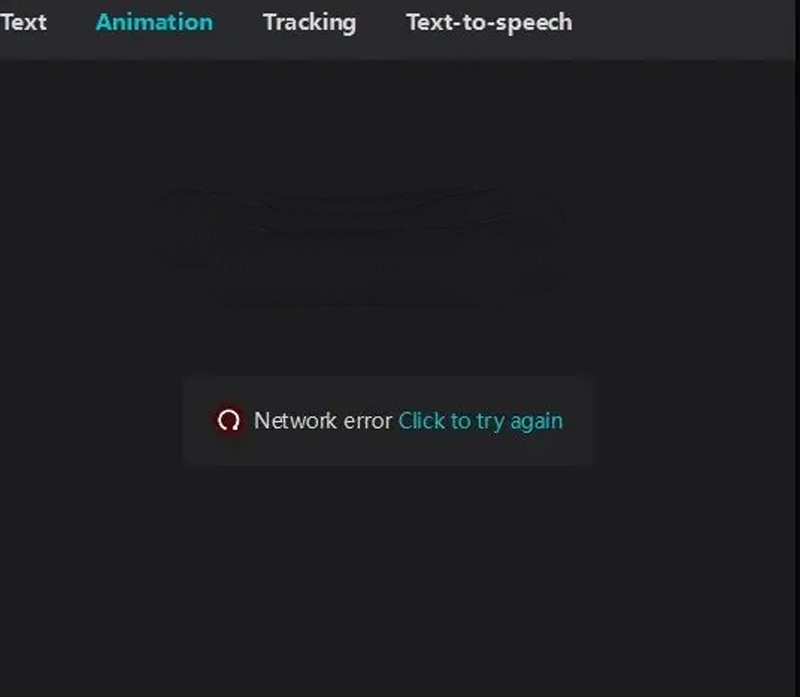
Cause 1: Regional restrictions
CapCut is restricted or banned in your country/region due to local policy regulations
Fix 1: Switch to a VPN node in a CapCut-supported region (e.g., the US, Singapore) and ensure the VPN connection is stable
Cause 2: Firewall/VPN interference, unstable internet connection
Fix 2: Targeted adjustment of network and security settings + recheck internet stability
Detailed Fix Operations for Network & Firewall Issues
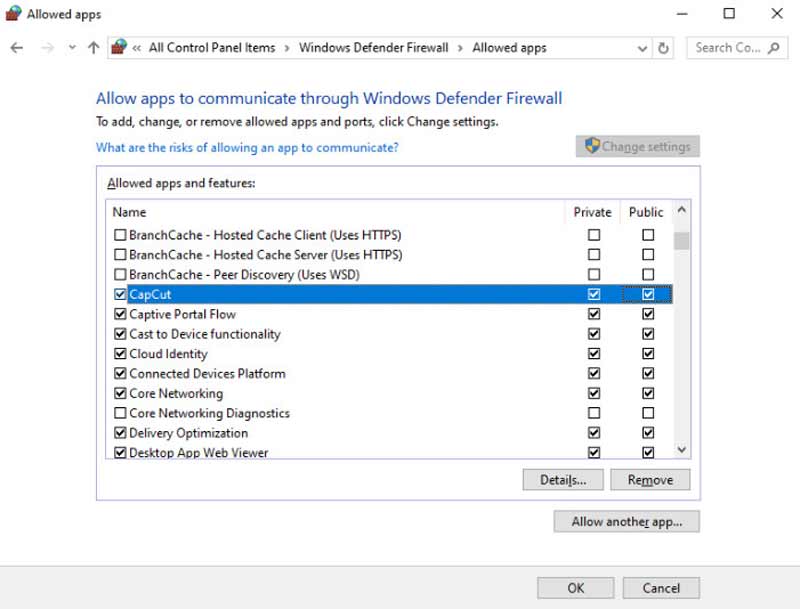
1. For PC users: Check if Windows Firewall (or third-party antivirus firewalls) is blocking the CapCut process. If yes, open Windows Security, go to Firewall & network protection, and select Allow an app through firewall. Click Change settings, find CapCut in the list, and check both Private and Public boxes. If not listed, click Allow another app to add it manually. Then restart CapCut.
2. For VPN users: If the current node is unavailable, switch to a stable node in a supported region; if you don’t need a VPN, close it completely to avoid connection interference.
3. For all devices: Test internet stability — switch from Wi-Fi to mobile data (or vice versa), restart the router, and check if other streaming apps (e.g., YouTube) load normally.
Even a minor internet disconnection or signal drop can cause CapCut to fail when loading online resources or exporting videos, so a stable network is a prerequisite for the app to run properly.
Part 3. Storage and Performance Limitations
This section targets the most common problems: CapCut opens normally but crashes during editing/exporting, or export fails with no prompt. The causes and fixes differ slightly between mobile and desktop versions, and high-resolution video editing is a common trigger for both versions. All operations in this section include the basic quick fixes for device and app glitches, eliminating repetitive basic troubleshooting steps.
3.1 CapCut Mobile: Memory, Storage & Heat Issues
Problem 1: Crashes during editing, background app forced to close
Cause 1: RAM overload — too many apps running in the background take up device memory
Fix 1: Close all unnecessary background apps, restart the mobile phone (fixes temporary system glitches), and then open CapCut again
Problem 2: Fails to export, app freezes, or cannot open normally
Cause 2: Low device storage (less than 2GB free space) or excessive CapCut cache
Fix 2: ① Free up mobile storage (delete useless photos/videos/apps); ② Clear CapCut cache (Do not clear data. Clearing data will delete local drafts!) — go to the Me tab on CapCut, find the Settings option, and select "Clear cache".

Problem 3: Freezes or crashes when editing 4K/60fps footage
Cause 3: Device overheating — high-resolution video editing generates a lot of heat, and the device forces the app to close to protect the hardware.
Fix 3: Stop editing temporarily, cool down the mobile phone (place it in a cool environment, avoid direct sunlight); reduce video resolution for editing.
3.2 CapCut Desktop (PC/Mac): Drivers & Hardware Encoding
Problem 1: Black screen, crashes during export, or editing lags severely
Cause 1: Outdated GPU graphics card drivers — desktops rely on dedicated graphics cards for video editing, and outdated drivers cause compatibility issues
Fix 1: Update GPU drivers to the latest official version (NVIDIA/AMD/Intel official website for corresponding models); restart the computer after updating to take effect
Problem 2: Export fails or crashes when editing large projects
Cause 2: Hardware encoding mismatch — older computers cannot support CapCut’s default hardware acceleration setting
Fix 2: Turn off Hardware Encoding in CapCut’s global settings, then restart the app for editing/exporting.
3.3 High-Resolution Video Editing (All Devices)
Problem: Lag, freeze, crash, or export failure when editing 4K/60fps footage
Cause: Low-end/older devices cannot bear the hardware pressure of high-resolution video editing
Fix: Optimize editing settings to reduce hardware load:
• Lower the preview resolution in CapCut’s editing interface;
• Convert and edit video in 1080p instead of 4K;
• Split large video projects into smaller parts for separate editing and merging after export.
Older devices simply lack the performance to handle heavy effects and high frame rates smoothly, so reducing the editing pressure is the most practical solution.
3.4 Universal App Glitch Fixes (All Devices)
For minor CapCut malfunctions caused by app version bugs or corrupted installation files (e.g., random freezes, unresponsive buttons), apply these two targeted fixes:
1. Update CapCut: Visit the App Store/Google Play/Microsoft Store and install the latest version — official updates fix known bugs and improve compatibility with devices/ systems.
2. Reinstall CapCut: If the app installation files are corrupted, delete and reinstall CapCut (back up local drafts first to prevent accidental loss of editing projects).
Part 4. Don’t Force It, Find Alternatives
If you’ve tried all the targeted fixes above and CapCut still fails to work normally — especially when your device hardware is low-end and struggles with high-resolution editing, AI enhancement, or large project rendering — it’s wise to split your video workflow and use a hardware-friendly specialized tool for the resource-heavy enhancement step, instead of forcing CapCut to handle all tasks at once.
CapCut excels at all-in-one video editing: cutting, transitions, audio matching, and basic effects are its core strengths, but its AI enhancement features for low-resolution/ blurry footage can put extra strain on low-end mobile/PC hardware, which is often the root cause of persistent crashes or export failures.
For the AI video enhancement step alone, you can turn to VidHex Video Enhancer — a lightweight, dedicated AI video enhancement tool with no video editing functions, designed exclusively to upgrade video quality (e.g., upscaling resolution, reducing blurriness, fixing overexposure) without taxing your device’s CPU or GPU. It’s the perfect complementary tool for your CapCut workflow: finish all your editing, cutting, and effect tuning in CapCut (even with reduced resolution to avoid crashes), then export the base video and use VidHex to boost its quality with one click.
You can download and install VidHex for free, upload your CapCut-edited video, and select the AI enhancement model you need — all with minimal hardware load, no freezes, and no crashes.

Part 5. FAQs about Using CapCut
Q1: Why is my CapCut network error showing even with Wi-Fi?
Your Wi-Fi may be connected but unstable. Try switching to mobile data or restarting your router. Also, check if a VPN is interfering with the connection.
Q2: Does clearing the cache delete my projects?
No. Clearing the cache removes temporary files only. However, clearing Data may delete local drafts, so be careful.
Q3: Is CapCut banned in my country?
CapCut has been restricted in some regions due to government regulations. If the app cannot connect even with a strong internet, check local app policies or official announcements.
Conclusion
In summary, the problem is local — storage limits, cache overload, outdated apps, or unstable internet. Less often, it’s a server outage or regional restriction.
To avoid future issues:
• Keep your app updated.
• Maintain enough free storage.
• Restart your device regularly.
• Avoid editing large 4K projects on low-end hardware.
Most CapCut problems are temporary and fixable. You just need the right approach.