


 VidHex — Enhance video quality with AI
 Enhance video details and clarity with AI technology and get stunning, high-quality video in any scenario.
Top 7 Apps that Stabilize Video in 2026: Free & Paid Solutions for Every Device

We’ve all been there: you capture a once-in-a-lifetime moment, only to realize later it looks like it was filmed during an earthquake. Whether you're a vlogger, a traveler, or just saving family memories, shaky footage can instantly ruin the experience.
The good news? Finding an app that stabilizes video is easier than ever in 2026. There are powerful free video stabilizer apps for Android and iOS, as well as professional video stabilization software for Windows and Mac.
In this guide, we’ll cover the best tools across Android, iOS, Windows, and Mac, including both free and paid options. We’ll also compare their pros and cons and share tips to get the best stabilization results.

Contents:
Part 1. Quick Comparison Table
| Software/App | Platform | Price | Best For | Overall Rating (out of 5) | Ease of Use Rating (out of 5) |
|---|---|---|---|---|---|
| VidHex | Win/Mac | Paid | Multiple video enhancements | ⭐⭐⭐⭐⭐ | 4 |
| DaVinci Resolve | Win/Mac | Free / Paid | Professional results for $0 | ⭐⭐⭐⭐⭐ | 1 |
| Adobe Premiere Pro | Win/Mac | Paid | Industry-level editing | ⭐⭐⭐⭐ | 2 |
| CapCut | All systems | Freemium | Social media content | ⭐⭐⭐⭐ | 3 |
| Google Photos | Android/iOS | Free | Quick mobile fixes | ⭐⭐⭐⭐ | 5 |
| Emulsio | iOS | Freemium | Advanced iPhone control | ⭐⭐⭐ | 3 |
| iMovie | iOS/Mac | Free | Apple ecosystem users | ⭐⭐⭐ | 2 |
Part 2. Best Stabilization Software for Desktop (Windows & Mac & All Systems)
Desktop software offers stronger stabilization, better control, and support for 4K or even 8K footage.
1. VidHex (Paid – Windows, Mac)
Rating: ⭐⭐⭐⭐⭐
The Vibe: Specialized for video enhancement.
Best For: Performing multiple video enhancements while stabilizing footage.
While stabilizing, VidHex Video Enhancer can also reduce video noise, enhance image quality, and apply AI frame interpolation, making the footage higher definition, smoother, and more stable. The interface is simple and very easy to use.

Pros
- Can process and export high-quality material
- Simple interface
- Low memory usage, no burden on the computer
Cons
- Cannot adjust stabilization strength
- Requires payment
For users with lower-end computers and beginners, VidHex can meet diverse video enhancement needs.
2. DaVinci Resolve (Free / Paid – Windows & Mac)
Rating: ⭐⭐⭐⭐⭐
The Vibe: Hollywood-level power.
Best For: Creators who want professional results for free.
DaVinci Resolve includes powerful stabilization tools in its free version. You can choose different stabilization modes depending on your footage.

Pros
- Professional-grade stabilization
- Free version exports without a watermark
- Supports 4K
- Advanced control options
Cons
- Steep learning curve
- Requires a relatively powerful computer
If you want the best free video stabilization software for PC or Mac, this is the top recommendation.
3. Adobe Premiere Pro (Paid – Windows & Mac)
Rating: ⭐⭐⭐⭐
The Vibe: The industry standard.
Best For: Professional editors.
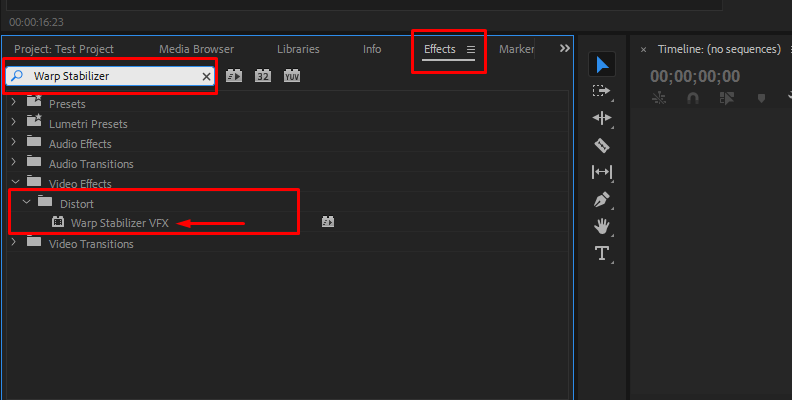
Premiere Pro’s Warp Stabilizer is one of the most advanced stabilization tools available. It handles high-resolution footage smoothly.
Pros
- Excellent stabilization quality
- Handles 4K and 8K footage
- Deep customization options
Cons
- Monthly subscription cost
- Can be complex for beginners
If you edit videos professionally, this remains one of the best-paid solutions.
4. CapCut (Free / Paid – Windows, Mac, Android & iOS)
Rating: ⭐⭐⭐⭐
The Vibe: The social media favorite.
Best For: TikTok, YouTube Shorts, and quick edits.
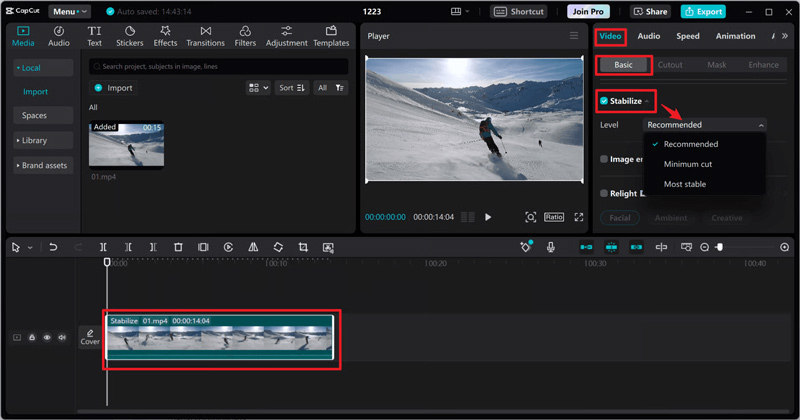
CapCut offers one-click stabilization modes like "Basic" and "Pro." It’s fast and beginner-friendly.
Pros
- Available on all major platforms
- Simple interface
- Good AI stabilization
Cons
- Some advanced features require payment
- Less precise than professional desktop tools
For creators who want speed and convenience, CapCut is a strong all-around option.
Part 3. Best Stabilization Apps for Mobile (iOS & Android)
Mobile apps are perfect for quick fixes and social media content. They’re fast, simple, and often powered by AI.
5. Google Photos (Free – Android & iOS)
Rating: ⭐⭐⭐⭐
The Vibe: The hidden gem already on your phone.
Best For: Android users and casual iPhone shooters.
If you use Android, chances are you already have Google Photos installed. It includes a built-in stabilization tool that works with just one tap.

Image Credits: True-Tech
Pros
- Completely free
- Extremely simple to use
- Uses Google’s AI technology
- No watermark
Cons
- Limited manual control
- Can create a slight "jelly effect" or wobble effect on very shaky footage
If you want the fastest free video stabilizer app, this is hard to beat.
6. Emulsio (Freemium – iOS Only)
Rating: ⭐⭐⭐
The Vibe: A precision tool for iPhone users.
Best For: Action shots and rolling shutter correction.
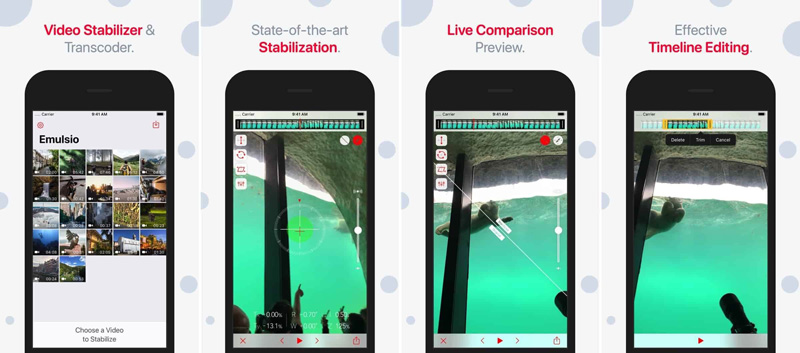
Emulsio gives you more control than most mobile apps. You can adjust stabilization strength and fix rolling shutter distortion.
Pros
- Advanced control settings
- Before/after preview
- Great for action footage
Cons
- Watermark in the free version
- Full features require a subscription
For iOS users who want more than one-tap stabilization, Emulsio is a strong choice.
7. iMovie (Free – iOS & Mac)
Rating: ⭐⭐⭐
The Vibe: Simple and reliable.
Best For: Apple users who want built-in tools.
iMovie includes a simple Stabilize Shaky Video checkbox. It’s not highly customizable, but it works well for light to moderate shake.

Pros
- Completely free
- No watermark
- Easy interface
Cons
- Limited fine-tuning
- Not ideal for extremely shaky clips
For Apple users, this is often the easiest solution.
Part 4. Tips: How to Get Better Stabilization Results
Even the best app that stabilizes video can’t fix everything. Here are a few practical tips:
1. Avoid extreme shake – Software works best with moderate movement.
2. Leave extra space when filming – Stabilization crops the frame.
3. Use higher resolution – 4K gives the software more pixels to work with, or upscale your video before stabilizing it.
4. Don’t max out stabilization strength – Too much can create distortion.
5. Combine with good filming habits – Use two hands, keep elbows close, and move slowly.
6. Rolling Shutter Correction – Many cheap apps can only reduce shaking, but they make the image wobble like jelly. Software like Emulsio or Premiere Pro offers advanced stabilization features to prevent image distortion.
7. Stacked Unblurring Model: Jitter often causes individual frames to be blurry, but stabilization processing does not make the edges of the frames clear. To solve this, you can further unblur the video.
Remember: software stabilization improves footage — it doesn’t perform miracles.
Part 5. FAQs about Using Video Stabilizer Apps
Q1: Does using a video stabilizer app reduce video quality?
Yes, slightly. Most stabilization tools work by cropping the edges of your video to smooth motion. That means you lose a small portion of the frame.
To reduce quality loss:
• Shoot in 4K, even if exporting in 1080p
• Avoid extreme digital zoom
• Use moderate stabilization strength
Q2: What is the best free video stabilizer app for Android?
Google Photos is the simplest and most reliable free option. Just open your video, tap Edit, and select Stabilize.For more editing features, CapCut is a good secondary choice.
Q3: Can I stabilize 4K footage for free on a PC?
Yes. DaVinci Resolve allows 4K export without a watermark in its free version. It’s the best free desktop option for serious creators.
Conclusion
In 2026, you don’t need a $500 gimbal to get smooth video.
If you want quick results on your phone, free video stabilizer apps like Google Photos or iMovie work perfectly. If you’re serious about filmmaking, free video stabilization software like DaVinci Resolve offers professional-level results at zero cost. And for social media creators, CapCut provides a fast and flexible middle ground.
The best tool depends on your device, budget, and editing goals — but now you have the top options for every platform.